
Client sorting and filters
How to find and work with the right client groups quickly
Why client filters are useful
Filters divide your client list by activity and behavior. This makes it easier to find new, regular, returning, or long-inactive clients.
How to apply a filter
- Open the Clients section
- Select the filters button
- Choose a client group
- Review the resulting list
- Clear the filter to see all clients again
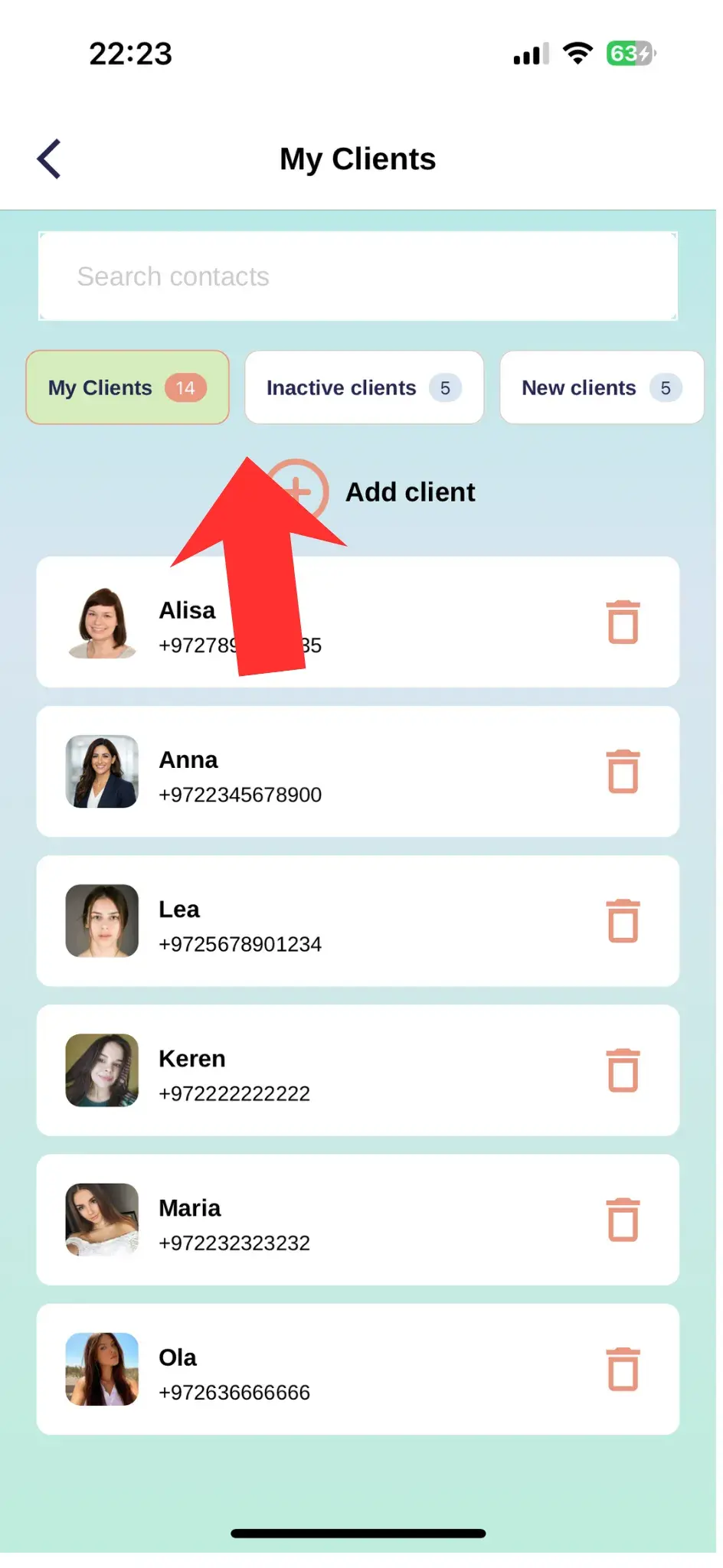
Five client filters
Each filter supports a different task
Inactive clients
Have not returned for a long time
Finds clients who have not had a recent visit.
Who belongs to this group
- Clients without recent appointments
- Clients who stopped returning
- Clients with an older visit history
What you can do
- Remind them about your business
- Offer a repeat service
- Review previous services and notes
New clients
Recently joined your client list
Shows clients who have only recently started using your services.
Who belongs to this group
- Recently added clients
- Clients with their first visit
- Clients without a long history
What you can do
- Learn their preferences
- Add tags and information
- Offer the next appointment
Regular clients
Return consistently
Quickly shows active clients with repeat visits.
Who belongs to this group
- Clients with regular visits
- Clients with repeat bookings
- Active business clients
What you can do
- Offer a loyalty card
- Prepare a personal offer
- Thank them for their loyalty
Returning clients
Booked again after a break
Shows clients who resumed visits after a period of inactivity.
Who belongs to this group
- Clients returning after a long break
- Clients with a new booking after a pause
- Previously inactive clients
What you can do
- Confirm their current preferences
- Update client details and notes
- Offer a suitable visit plan
Clients with cancellations
Have canceled appointments
Highlights cancellations so you can decide whether additional booking conditions are needed.
Who belongs to this group
- Clients with canceled appointments
- Clients with repeated cancellations
- Clients with recorded cancellation reasons
What you can do
- Review history and cancellation reasons
- Discuss cancellation rules
- Enable prepayment if needed
Use filters to work with client groups
After selecting a group, open individual client profiles and review history, tags, and notes. This helps keep your outreach personal instead of sending everyone the same offer.