
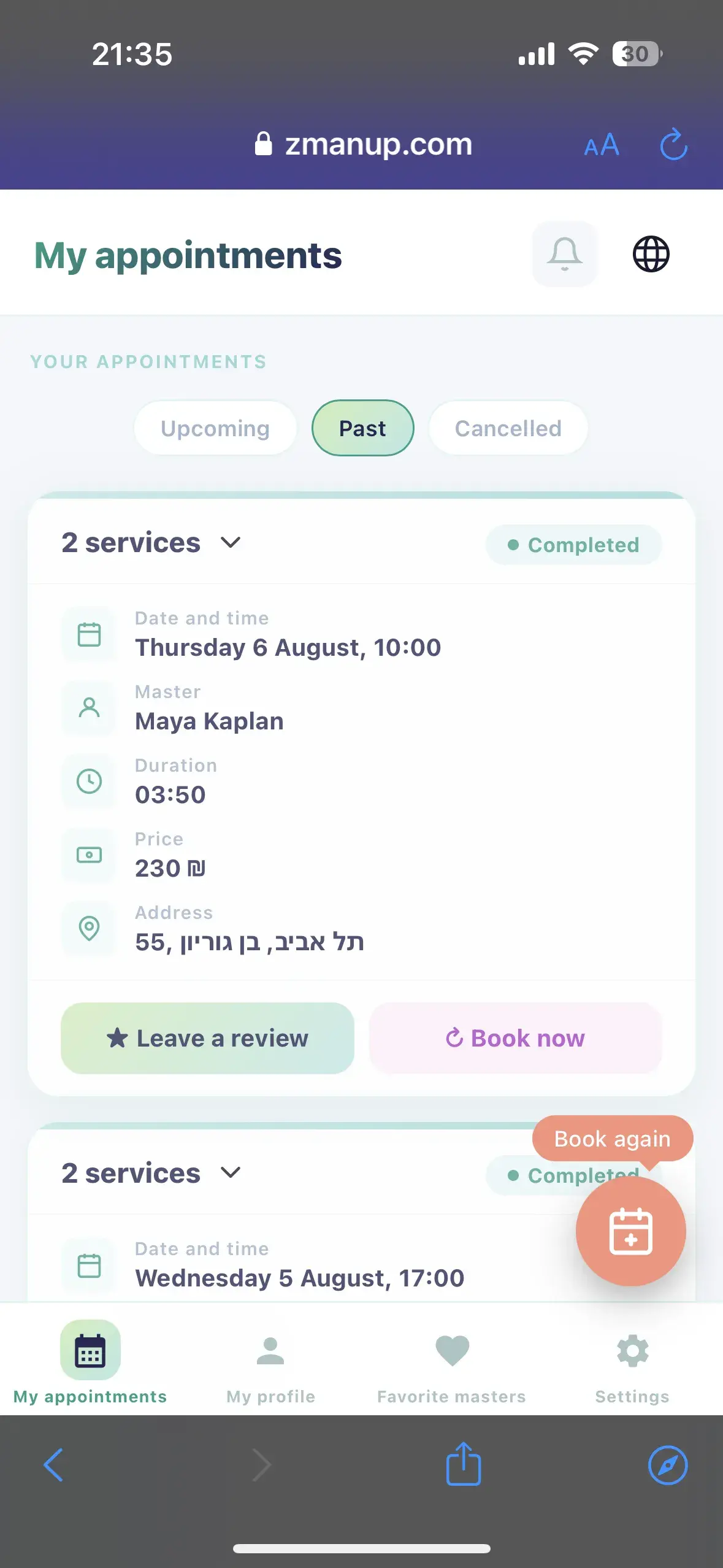
On iPhone
- Open ZmanUp in Safari.
- Tap Share.
- Select Add to Home Screen.
- Tap Add.
ZmanUp for clients
Book professionals and manage appointments from one account. No old messages or separate links — sign in with your phone number to access all your bookings.
Secure sign-in with your phone number and a one-time code
One number, every booking
Every booking with professionals who use ZmanUp is collected here.
Upcoming bookings
Appointment date and time
Service and price
Professional’s contact details
Appointment address
Current booking status
Visit history
Group classes
Passes and remaining visits
Bookings with different professionals
You do not need a separate account for every professional. Bookings are linked to your phone number and shown in one account.
Always within reach
You can also add ZmanUp to your phone’s home screen and use your personal account like a regular app.
Simple and secure access
You only need the phone number used when booking.
Visit ZmanUp from your phone or computer.
The button is in the site header and mobile menu.
Use the same phone number you gave the professional.
Enter the one-time code we send you.
View and manage all appointments in one place.
After a successful booking, a panel will appear at the bottom of the screen inviting you to open your ZmanUp account.
Select “Sign in to your account” and use the phone number entered while booking. Your new appointment will already be available, together with bookings from other professionals.
Everything at hand
Check the exact date, time, service, price and professional details.
See whether an appointment is confirmed, changed or cancelled.
Manage a booking according to the professional’s cancellation rules.
Find previous appointments and services you received.
See active passes and the number of used and remaining visits.
Check the time and details of every class you joined.
Never miss a booking
Before a visit, receive the professional, service, date and time details.
Available channels and timing depend on the professional’s settings. Changes and cancellations also appear in your account.
FAQ
No. If you have booked through ZmanUp, sign in with the phone number used for that booking and confirm it with a one-time code.
Make sure you used the same number given to the professional. If it is correct, contact the professional or ZmanUp support.
Yes. Appointments made with the same phone number are available in one account.
Yes, when allowed by the professional’s settings and cancellation policy.
No. ZmanUp works in a browser and can be added to your home screen.
Check the number, wait a few minutes and request another code. Contact support if it still does not arrive.
Sign in to view appointments, manage bookings and receive current information from your professionals.