
Appointment Statuses & Notifications
Complete guide to automatic statuses, client reminders, and notification system
Why do we need statuses?
Status and automatic notification system helps manage appointments effectively, reduce no-shows, and improve client communication.
System benefits:
- Automatic reminders to clients about upcoming meetings
- Reduce missed visits by 50-70%
- Track confirmation and cancellation statistics
- Save time on manual calls and messages
Status Types
4 main statuses for managing appointments
Each appointment goes through several statuses from creation to completion. The system automatically changes statuses or you can do it manually.
Confirmed
Client confirmed they will attend
When it's set: Client clicked 'Confirm' in message or you set manuallyWaiting
Reminder sent, awaiting client response
When it's set: Automatically set when reminder is sent at the set time before meetingArrived
Client came to appointment
When it's set: Set manually by master when client arrivesNo Show
Client didn't show up
When it's set: Set manually by master if client didn't arrive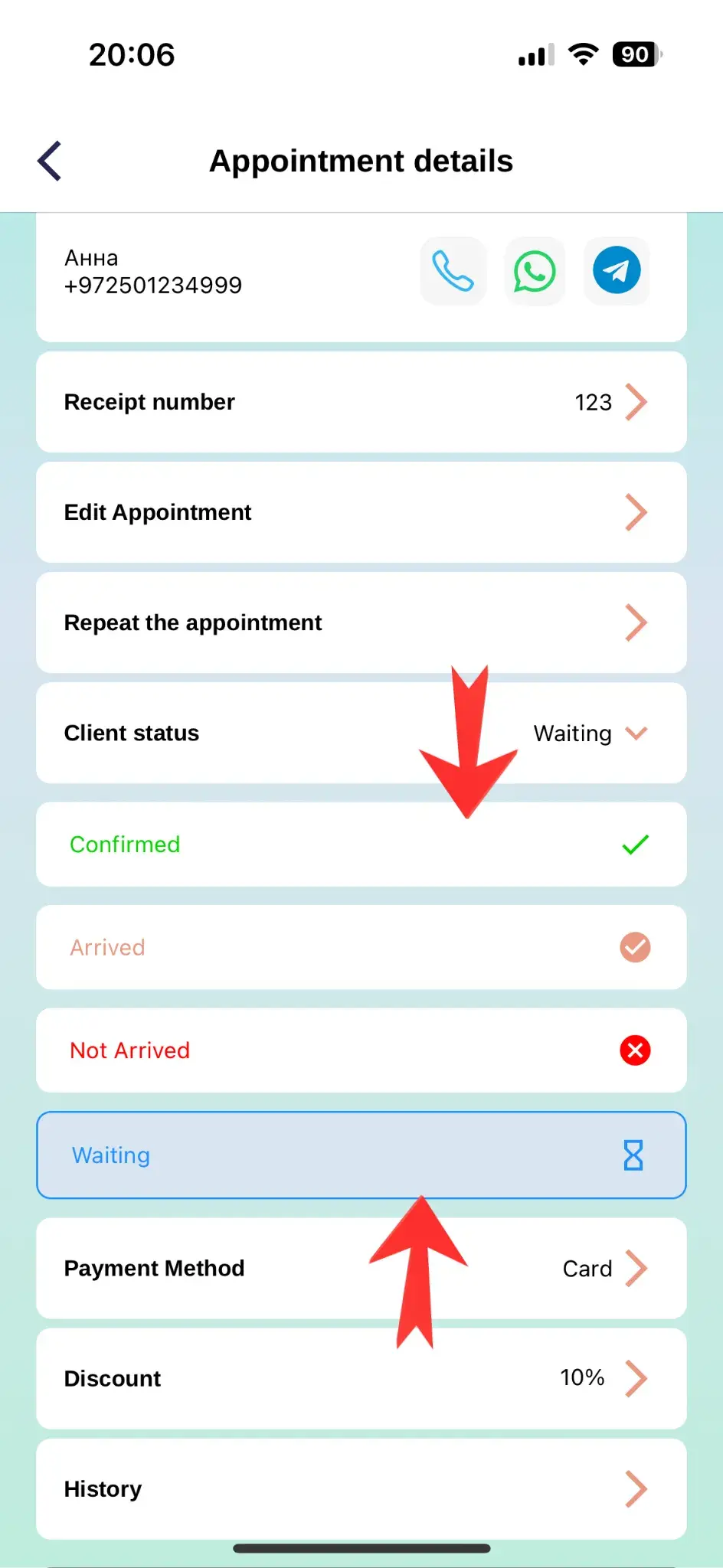
Automatic Reminders
How the notification system works
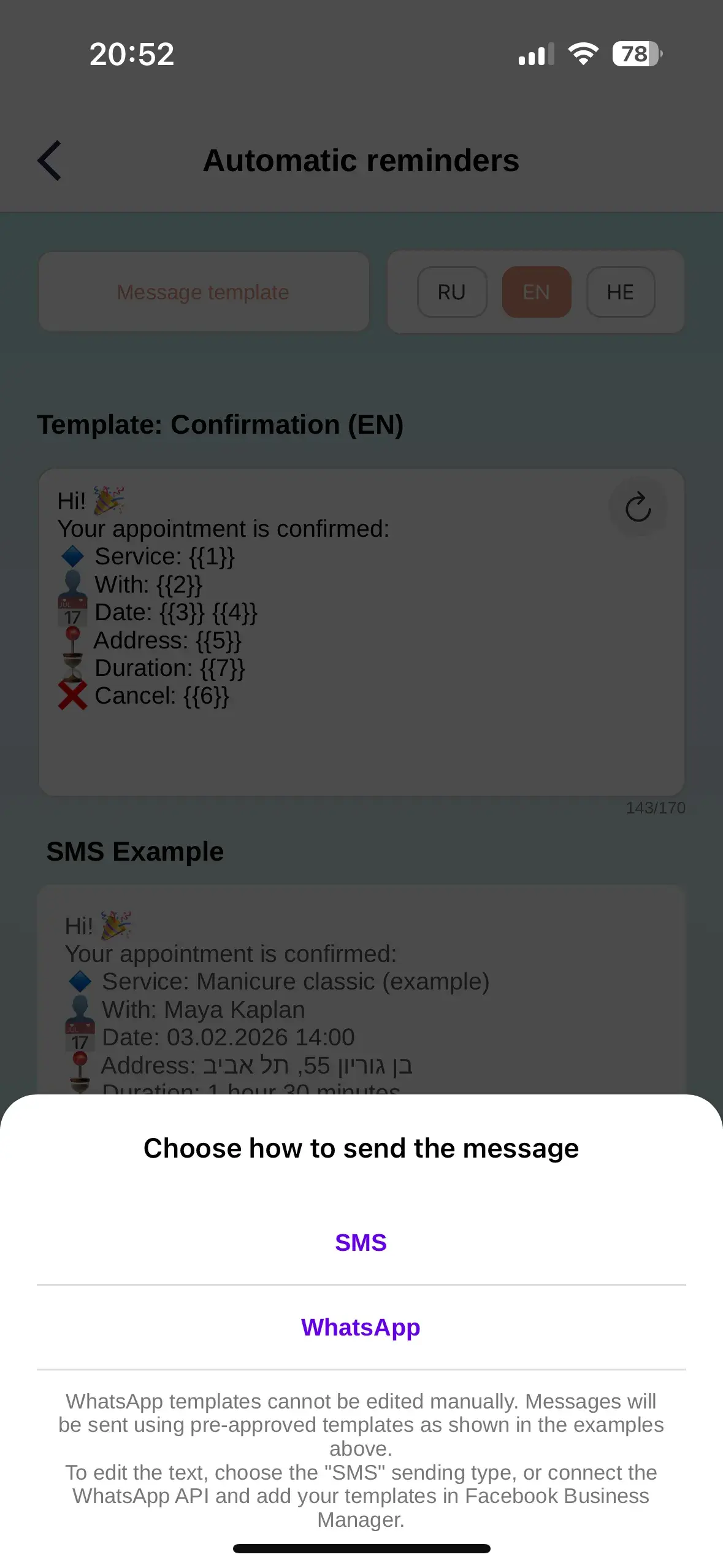
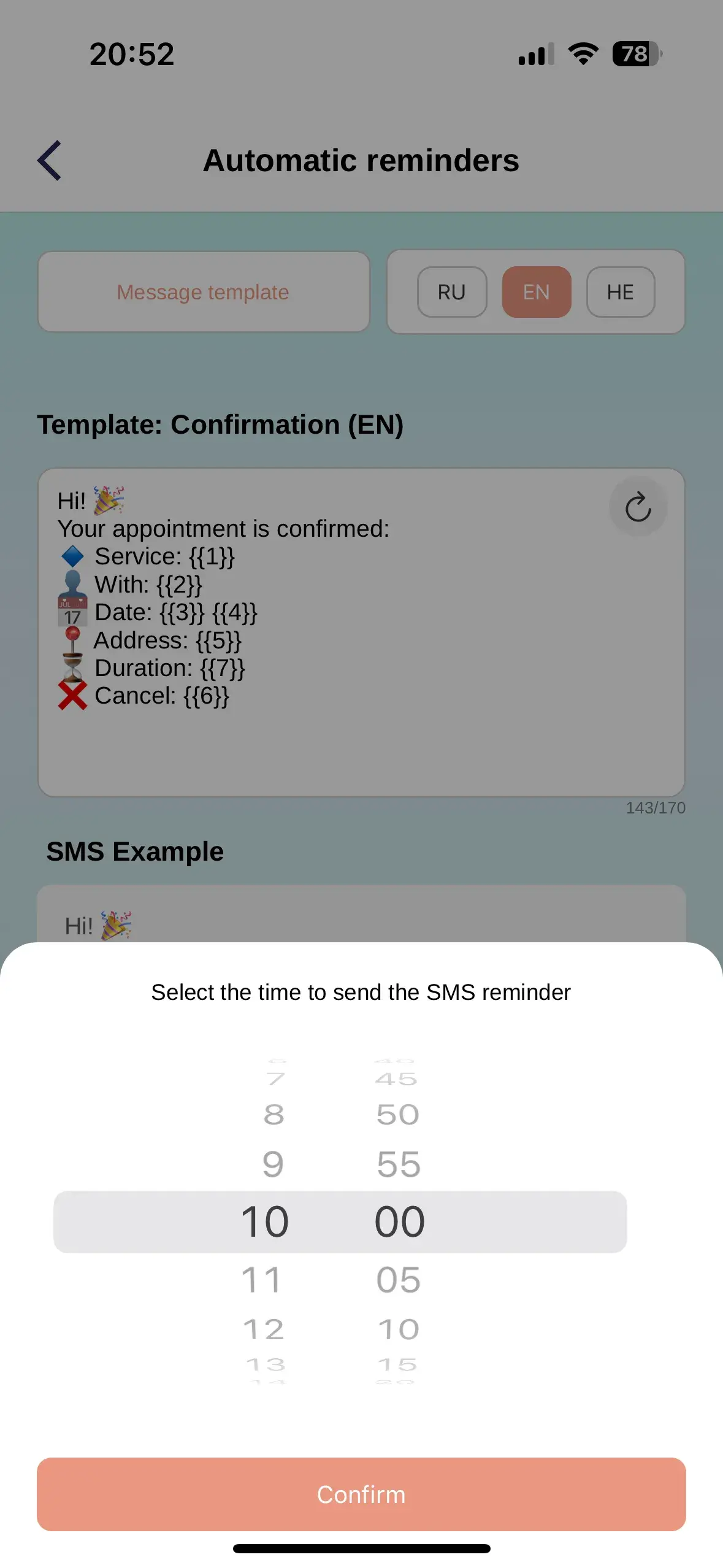
ZmanUp automatically sends reminders to clients at the set time before meeting. You configure when and how often to send.
Reminder settings:
- Send time: How many hours/minutes before meeting (e.g., 24 hours or 3 hours before)
- Content: Meeting info: date, time, service, address
- Automatic status: After sending reminder, status changes to 'Waiting'
Hello Anna! Reminder about your appointment tomorrow at 2:00 PM for manicure with master Maria. Address: 10 Example St. Confirm or cancel via link...
Client Confirmation
Interactive link in message
Each reminder has a special link where client can confirm or cancel appointment with one click.
What client can do:
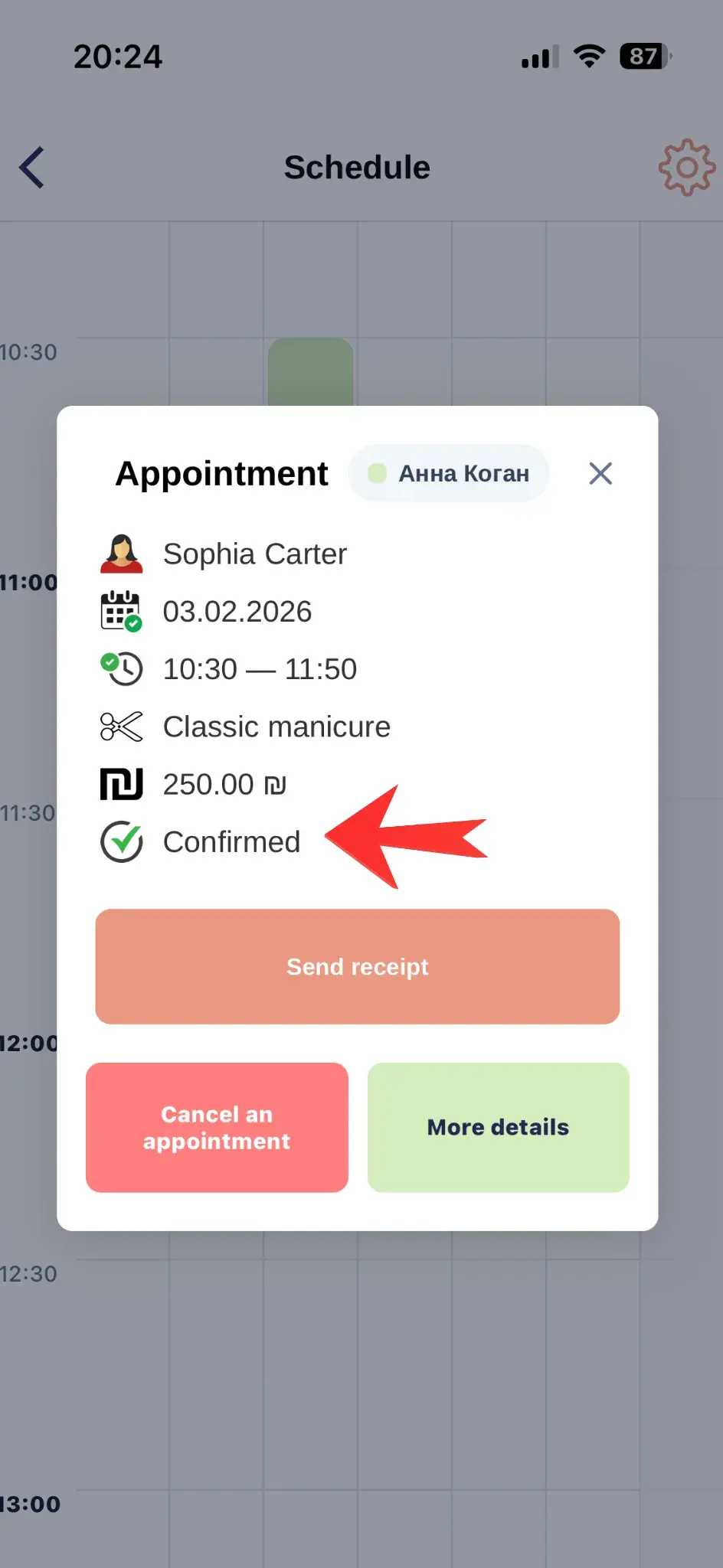
Confirm meeting
Status automatically changes to 'Confirmed'
Cancel meeting
Appointment is canceled, time is freed for other clients
Manual Status Change
When to change status manually
While many statuses change automatically, sometimes you need to do it manually.
When to change manually:
- Client arrived - set 'Arrived'
- Client called and confirmed - set 'Confirmed'
- Client didn't show - set 'No Show'
- Client canceled by phone - cancel appointment
How to change status:
- Open appointment card in calendar
- Click on current status
- Select new status from list
Notification Channels
WhatsApp and SMS
Available sending methods:
Instant messages with clickable links
Advantages- Nearly 100% delivery
- Client sees message immediately
- Clickable link for confirmation
SMS
Text messages to phone number
Advantages- Works on any phone
- Doesn't require internet for client
- High delivery reliability
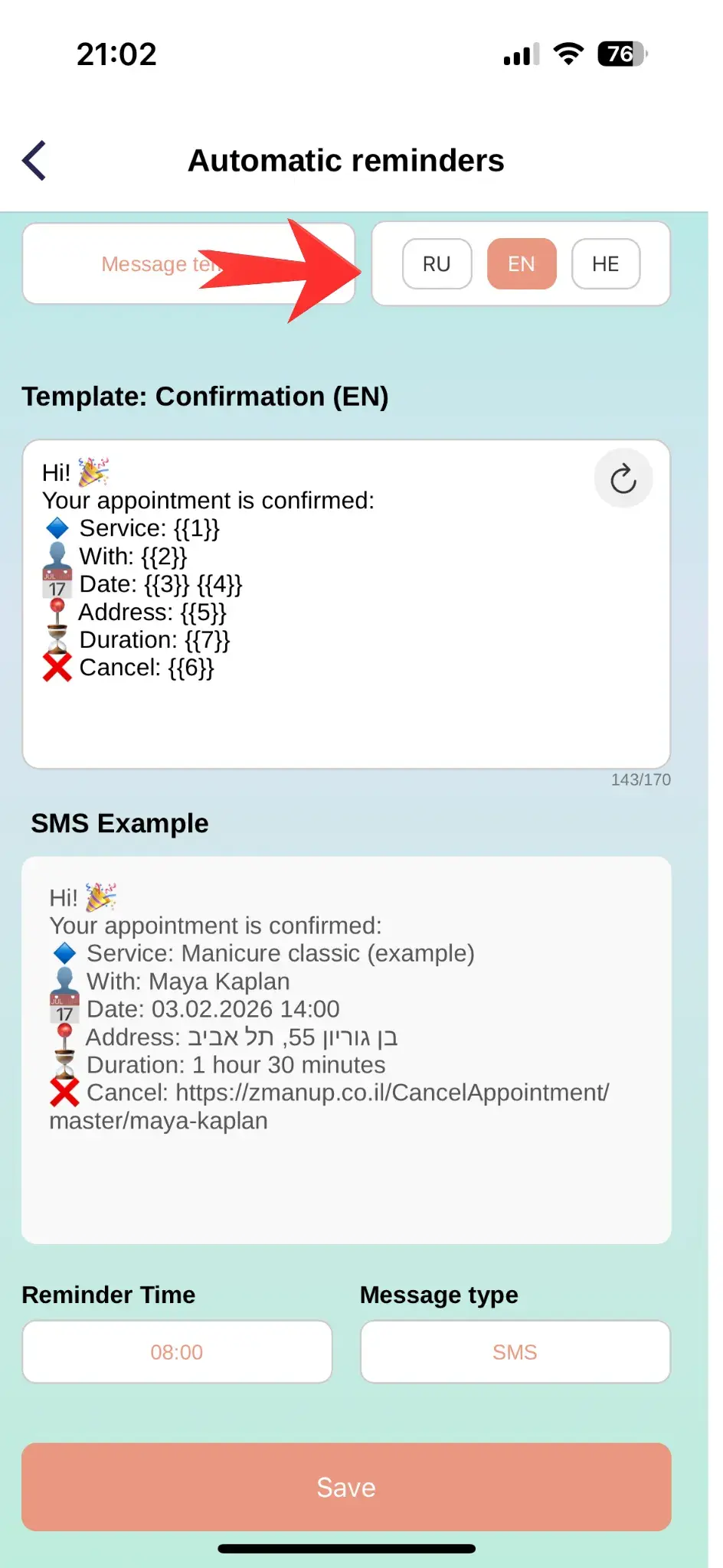
Notification Language Selection
3 languages for your clients
You can send notifications in the language your client understands. This increases read and response rates.
Supported languages:
Usage Recommendations
⏰ Optimal Timing
Send first reminder 24 hours before, second 3 hours before meeting. This gives client time to react and reduces no-shows.
✅ Update Statuses
Always update status when client arrives or doesn't arrive. This helps build statistics and understand client reliability.
📊 Analyze Data
Use status reports to understand: which clients are reliable, when there are more cancellations, whether to change reminder timing.