
Appointment Details
Complete guide to managing appointments - editing, status changes, payments, and all available actions
Managing Appointments
The appointment card contains all meeting information and provides numerous management tools. Here you can edit details, change status, send notifications, and much more.
How to open appointment card:
- Click on the appointment in the calendar
- Find the appointment through search and open it
- Navigate through client history
Appointment Card
Overview of meeting information
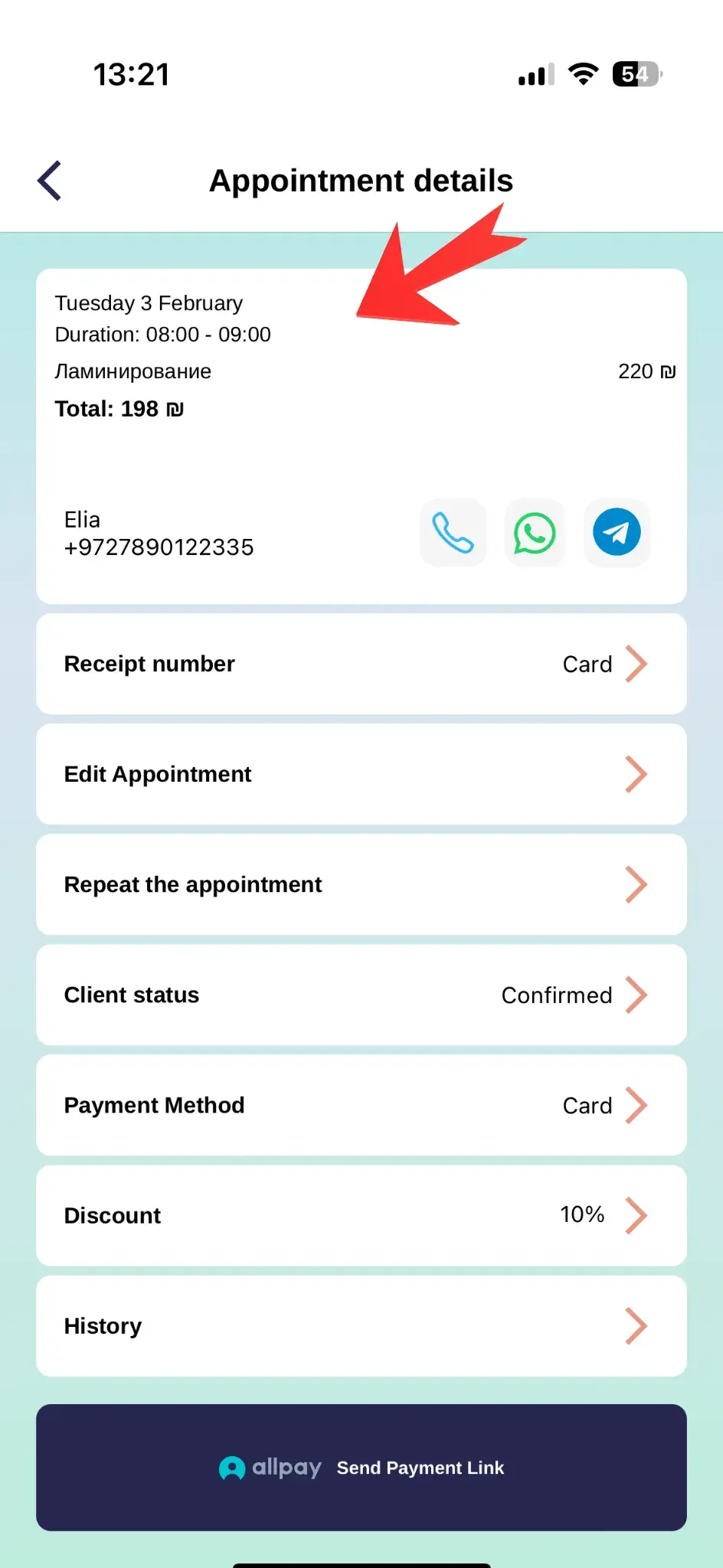
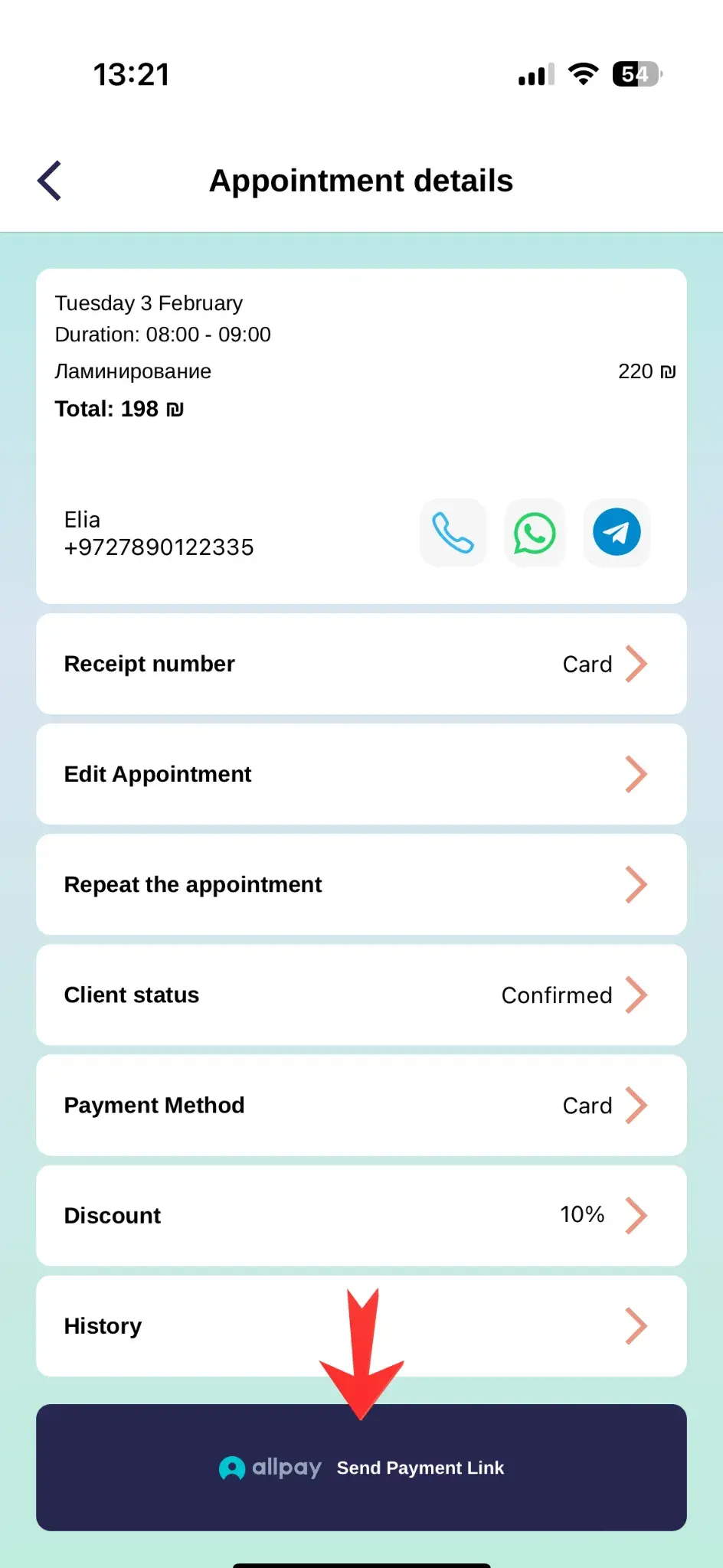
The appointment card displays all key meeting information in a convenient format. All necessary data for work is gathered here.
Information in the card:
- Client: name, contact information
- Service: service name and duration
- Date and Time: when the meeting is scheduled
- Cost: service price including discounts
- Status: current client status
Client Information
Quick access to data and actions
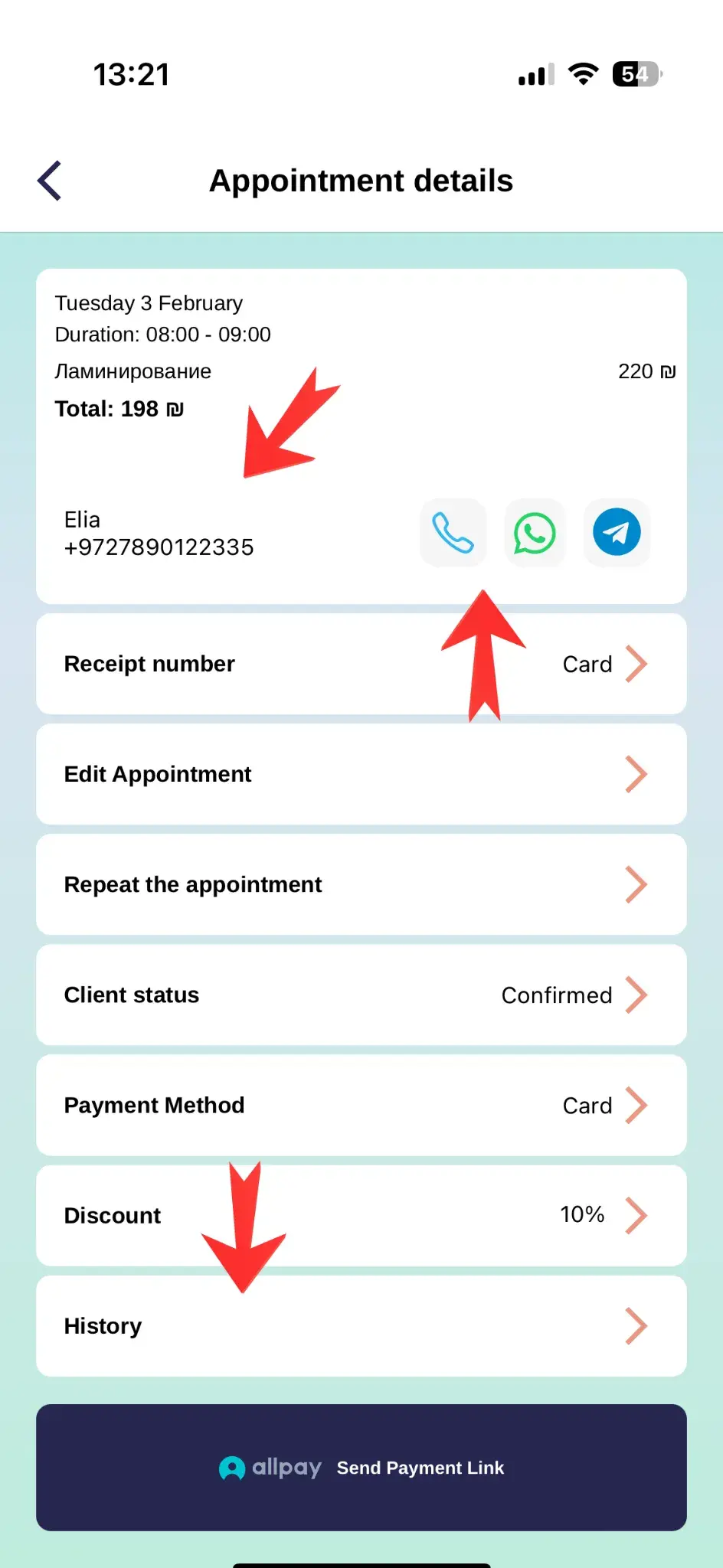
In the appointment card, you can quickly interact with the client without going to their profile.
Quick actions:
Call
Quick call to client with one tap
Message
Send message via WhatsApp or SMS
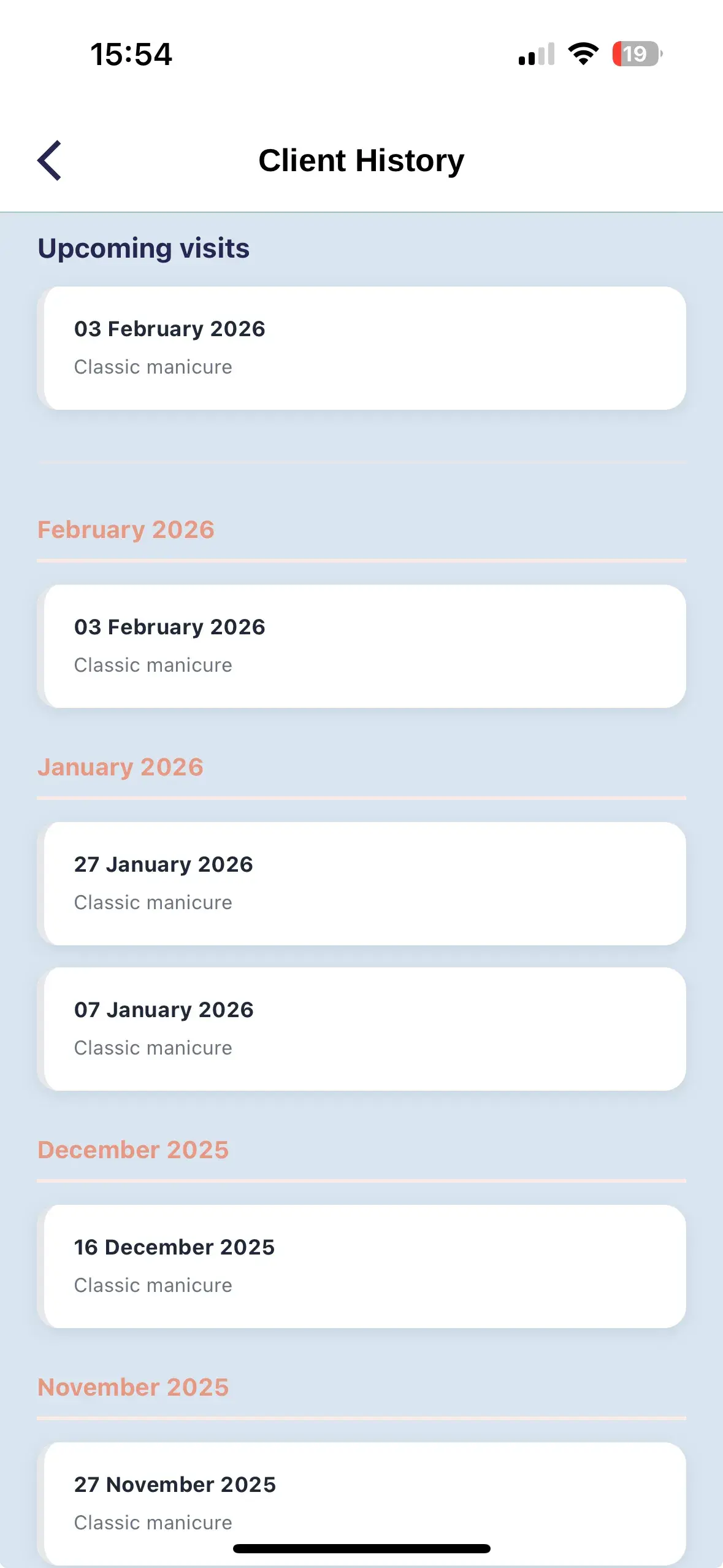
History
View all previous visits
Editing Appointment
Changing meeting details
You can change any appointment parameters at any time. All changes are saved automatically.
What can be changed:
- Meeting date and time - reschedule to another day or time
- Service - change to another from the price list
- Duration - increase or decrease time
- Discount - change percentage or discount amount
- Notes - add or modify notes
- Payment method - choose another payment method

Client Statuses
Tracking appointment state
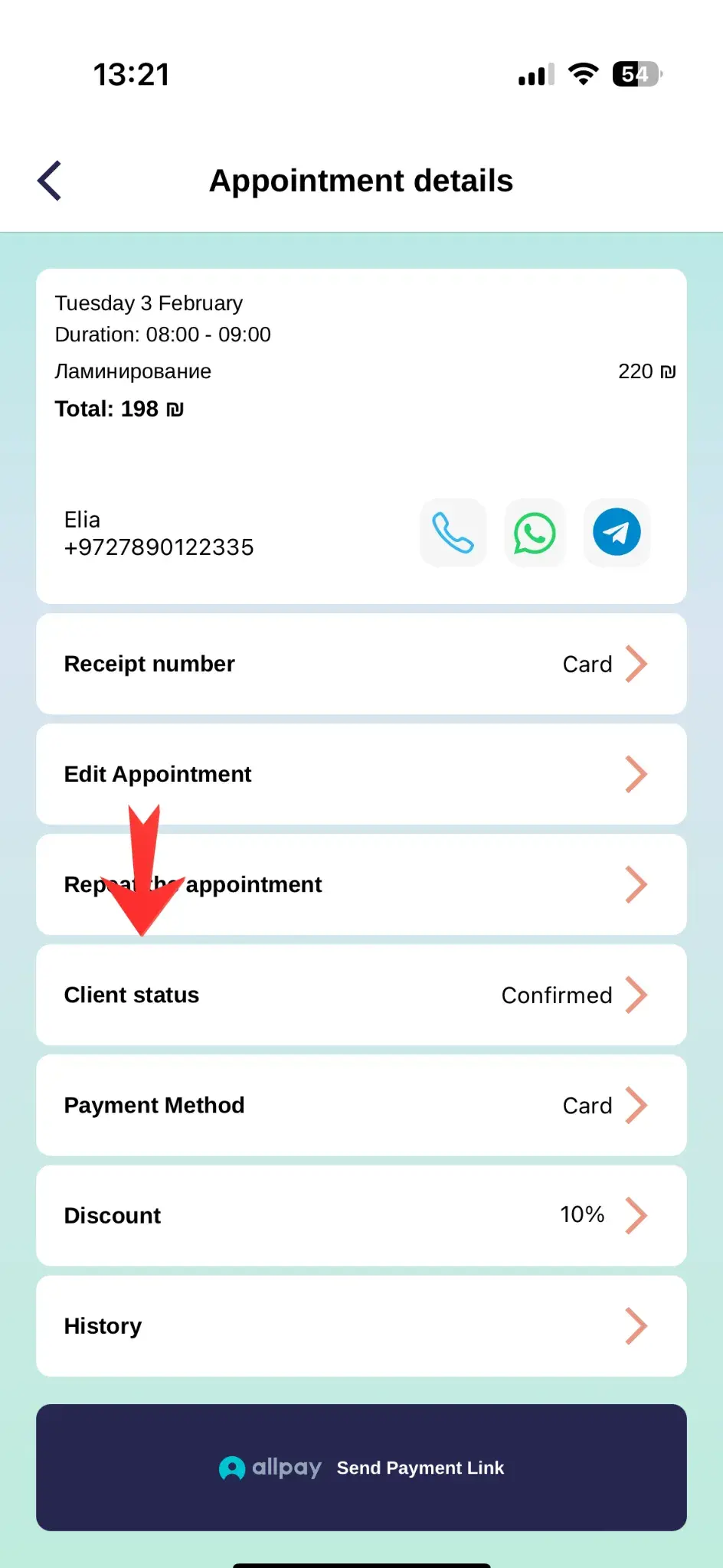
Statuses help track what stage the appointment is at. You can change them manually or the system will do it automatically.
Available statuses:
Client confirmed they will attend
Client arrived for the meeting
Reminder sent, awaiting response
Client didn't show up for the meeting
Additional Appointment Tools
All new tools available directly in the appointment card
Booking Source
The card shows who created the appointment: the client through the personal page or the professional manually.
- Website — the client booked online
- Professional — the appointment was created in the app
Additional Reminder
You can enable one more personal reminder for an individual appointment and select when it will be sent.
- The time must be at least 1 hour before the appointment
- Unavailable for canceled, completed, and group appointments
Products in the Appointment
Products added to the appointment appear alongside services and are included in the total.
- The product name, variant or volume, and quantity are shown
- Product value is included in the appointment total and sales analytics
Questionnaire Answers
The appointment card stores the client's answers to questions associated with the selected service.
- Answers to questions before and after the appointment are shown
- Extra time from the questionnaire is included in the appointment duration
Group Appointment
For a group class, the card shows participants and the selected group service details.
- View the list of participants
- The appointment is linked to the group service and its schedule
Notes
Use notes to save important details about the appointment and the client.
- Record client preferences and important details
- Save materials used and the appointment result


Payment & Receipts
Managing the financial side of the appointment
Payment options:
- Change payment method: switch between cash, card, Bit, or Paybox
- Send payment link: client can pay for the service online in advance
- Apply discount: set percentage or fixed discount amount
- Tips: Add tips separately from the cost of services and products.
- Split Payment: Split the total between several payment methods.
- Client Debt: Save the unpaid amount as client debt. It will appear in the client card and financial statistics.
Available Payment Methods
For card payments, you can record the last 4 digits; for checks, the check number; and for bank transfers, the transfer number.
Working with receipts:
- Add receipt number: attach the issued receipt number to the appointment
- Send receipt: client will receive receipt via WhatsApp or SMS


Repeat Appointment
Creating new appointment based on current one
The 'Repeat Appointment' function allows you to quickly create a new meeting with the same parameters. This is especially convenient for regular clients.
What is copied:
- Client - the same client
- Service - the same service with the same duration
- Notes - all notes are transferred
- Discount - if there was a discount, it will be saved

Cancel & Delete
Difference between canceling and deleting
Cancel or delete?
Cancel appointment
- Appointment remains in system marked as 'Canceled'
- Saved in client history
- Counted in cancellation statistics
Delete appointment
- Appointment is completely removed from system
- No traces remain in history
- Cannot be recovered

Useful Tips
Update Statuses
Regularly update appointment statuses. This helps track client attendance and build more accurate business statistics.
Use Notes
Add important information to notes: procedure specifics, materials used, client reactions. This helps during the next visit.
Repeat Appointments
For regular clients, use the repeat function - it saves time and eliminates data entry errors.