
Client blacklist
How to restrict online booking for unreliable clients while keeping their history
What is the blacklist
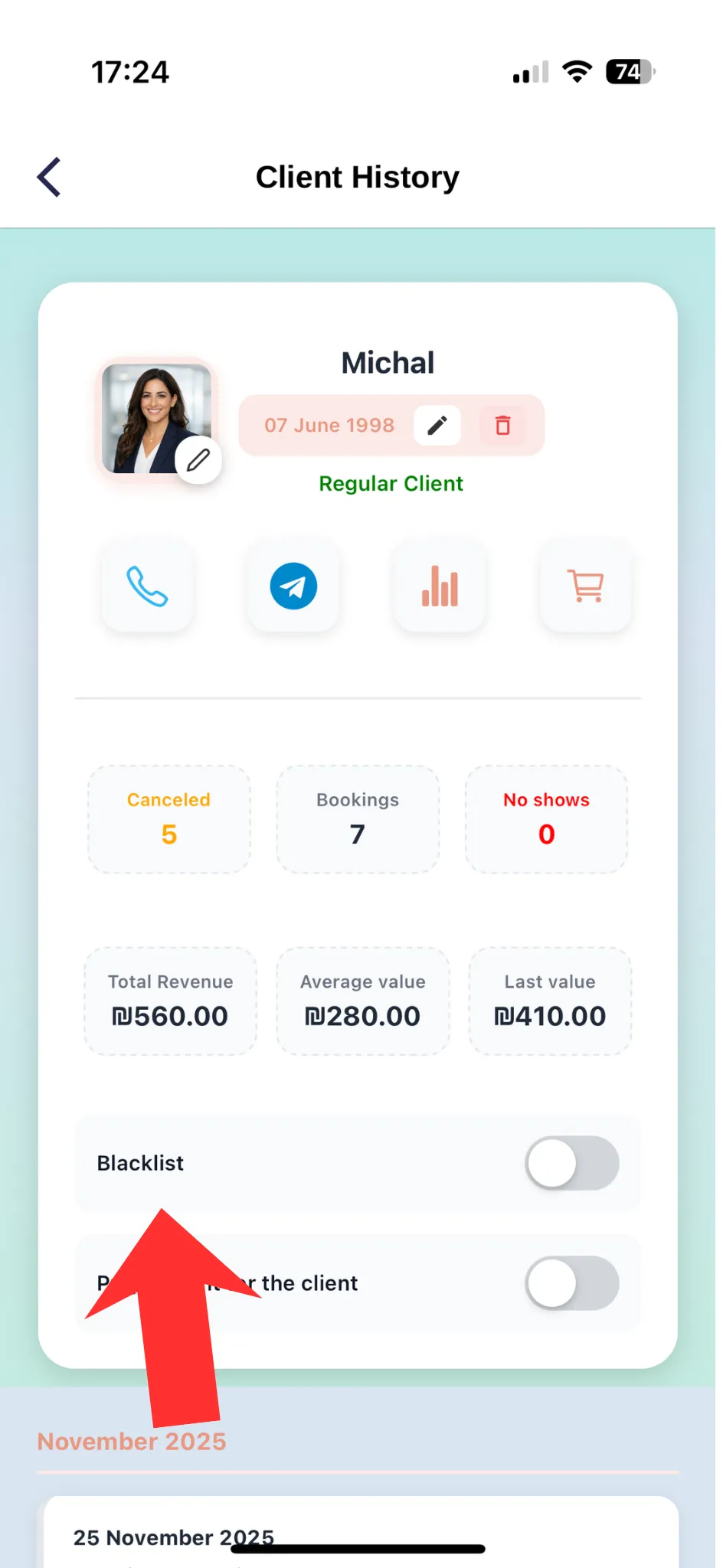
The blacklist prevents a specific client from booking with you online. Their client profile, appointments, notes, and history remain saved.
When you may want to use it
The client repeatedly misses appointments without notice
The client behaves inappropriately or repeatedly breaks your rules
There are unpaid services or recurring payment issues
The client is regularly late and disrupts your schedule
You no longer want to accept self-service online bookings from this client
What changes after blocking
The client will no longer be able to book with you online
They will not be able to take an available slot through your booking page
Their profile, appointment history, and notes will remain saved
You can still edit the client and create an appointment manually when needed
How the switch works
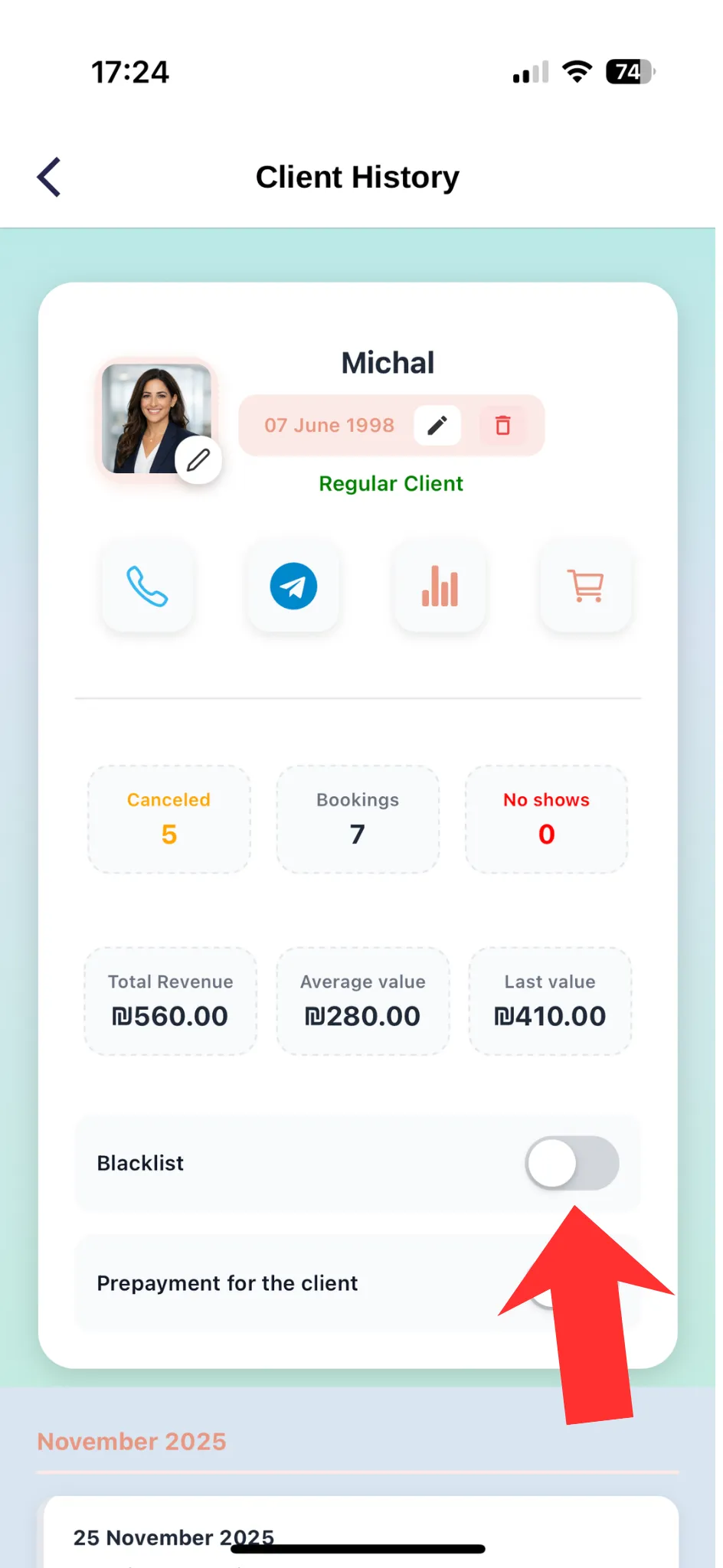
You can change the status at any time from the client profile. The change takes effect immediately.
Switch off — the client can book online as usual
Switch on — self-service online booking is blocked for this client
Managing the blacklist
🚫 Add to the blacklist
- Open the Clients section
- Find and open the relevant client profile
- Go to the blacklist setting
- Turn on the blocking switch
- Make sure the change has been saved
✅ Remove from the blacklist
- Open the blocked client's profile
- Find the blacklist setting
- Turn off the blocking switch
- The client will be able to book online again
An alternative to blocking
Use a prepayment
💳 Use a prepayment
If the issue is cancellations or no-shows, you can ask the client to make a prepayment instead of blocking them completely.
Use blocking thoughtfully
The blacklist only restricts self-service online booking. Client data and work history are not deleted, and access can be restored at any time.