
Before and after photos
Save work results in the client profile and track changes over time
What are before and after photos?
The Before and After feature lets you save result photos directly in the client profile. You can compare changes, keep a procedure history, and clearly show progress.
Why save results
- Clearly compare the condition before a procedure with the result afterward
- Track the client's progress between visits
- Keep the work history together with the client profile
- Quickly recall the procedure and technique used
- Use photos during consultations with the client's consent
How to add photos
- Open My Clients
- Find and open the required client profile
- Open the Before and After section
- Tap the button to add a new result
- Add the Before photo from the camera or gallery
- Add the After photo
- Add a result description if needed
- Tap Save
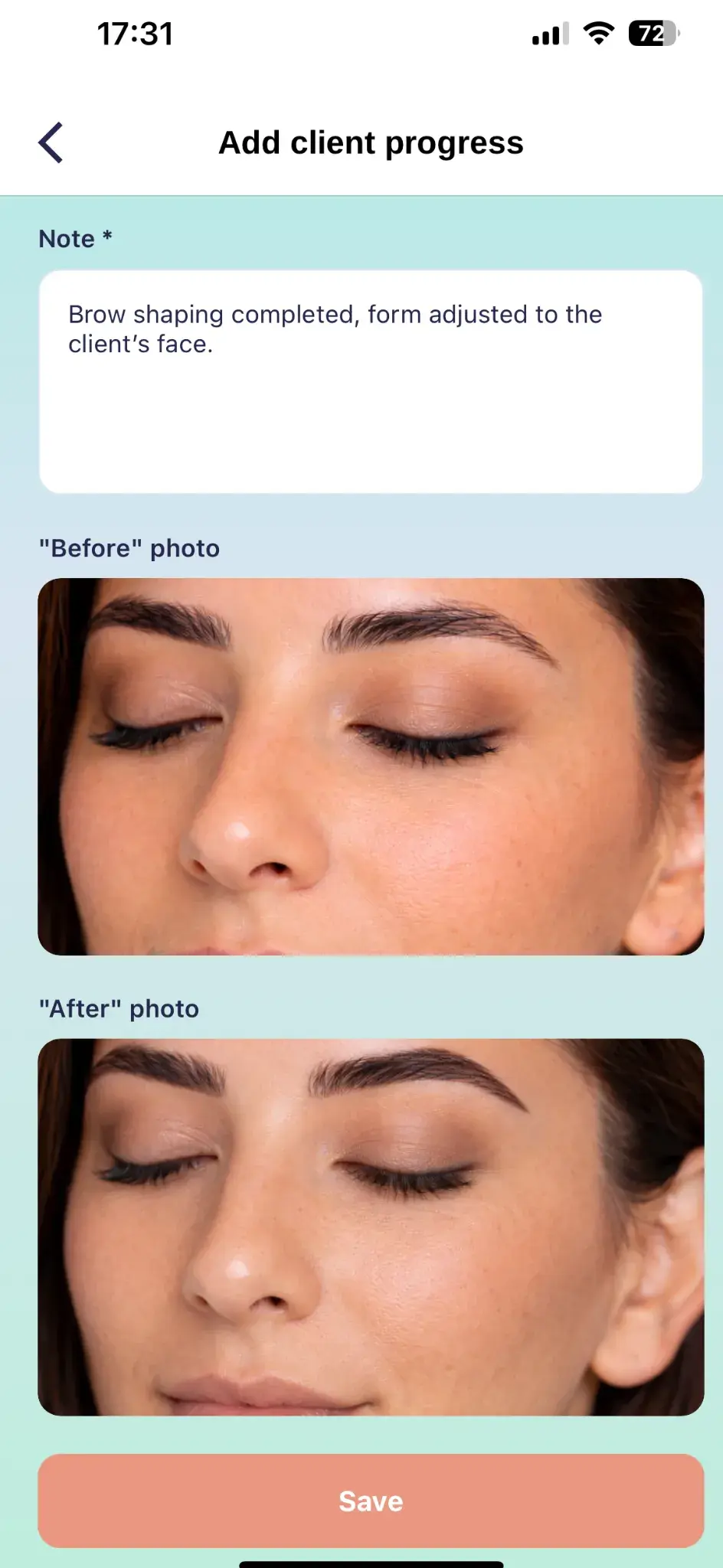
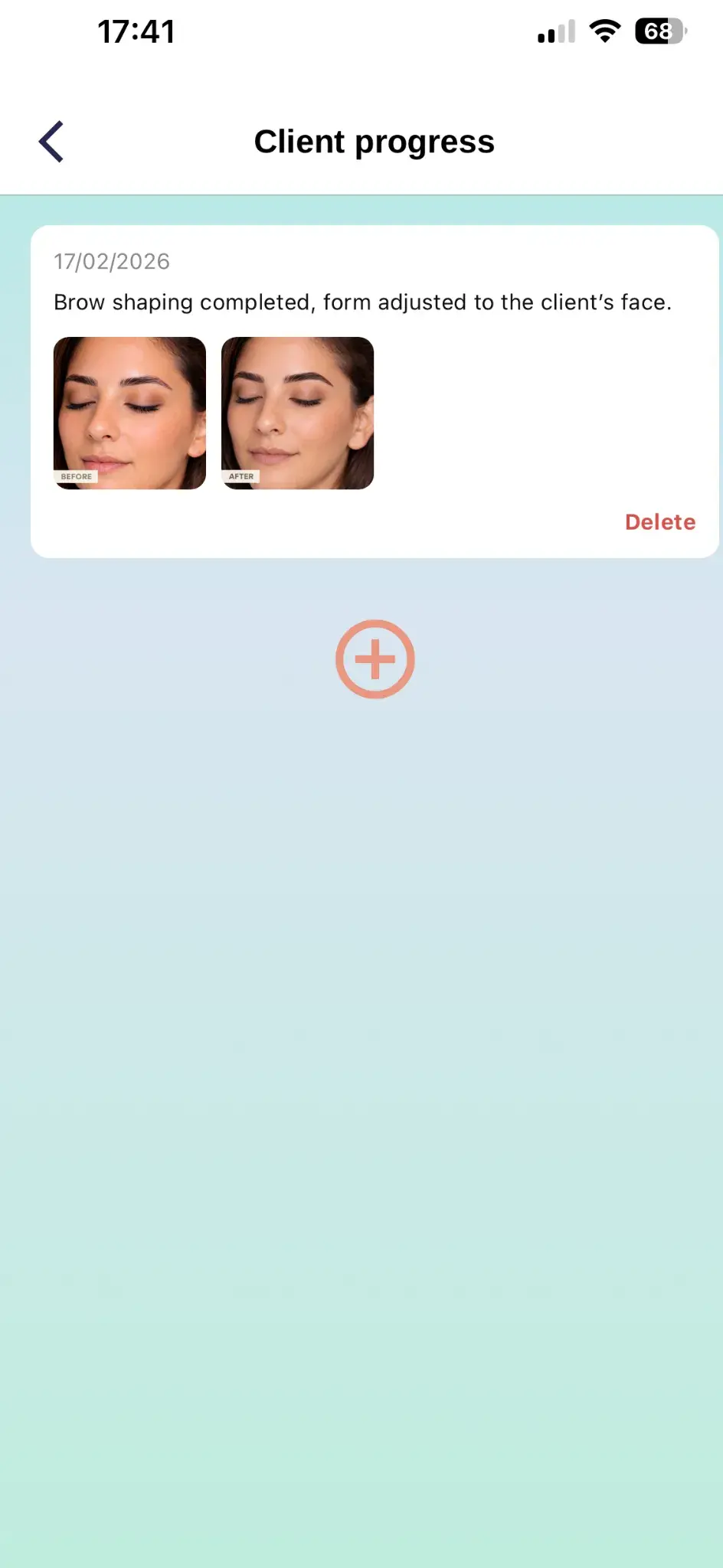
Result description
Add useful information to the photos
You can add a text description to each photo pair. It helps explain which procedure was performed and what changed.
What you can include:
- The name of the procedure
- The technique, materials, or shades used
- The client's condition before the procedure
- The result and important observations
- Recommendations for the next visit
Hair coloring and restoration. Removed warm tones, evened out the color, and added a treatment. A repeat procedure is recommended in 6–8 weeks.
How to view the history
All results are saved in the client profile
Saved photos remain linked to the specific client and are available during future visits.
How to open a saved result:
- Open the client profile
- Open the Before and After section
- Select the required entry by date
- Open the photos and description
Edit and delete
Manage saved photos
✏️ Edit an entry
- Open the required result
- Tap the edit button
- Replace the photos or update the description
- Save the changes
🗑️ Delete an entry
- Open the required result
- Tap the delete button
- Make sure the correct entry is selected
- Confirm deletion
Suitable use cases
Hair
Haircuts, coloring, restoration, and length changes
Nails
Manicure, strengthening, designs, and nail restoration
Lashes
Extensions, lifting, and lash corrections
Brows
Shaping, coloring, and brow lamination
Face
Cosmetic procedures and skin condition tracking
Body
Massage, care procedures, and treatment course tracking
Important to remember
Take photos in similar lighting and from the same angle for a fair comparison. Always obtain the client's consent before using photos outside their profile.