
Expense tracking
How to add expenses, select categories and payment methods, and monitor business costs
What the expenses section is for
This section helps you record business costs and include them in the financial summary. Each expense has a date, category, payment method, and amount.
Expenses main screen
Total, filters, cards, and adding expenses
Total amount
The total expenses for the selected period
Filters
Filter expenses by period and available parameters
Expense cards
A list of saved transactions and their main details
New expense
The button for adding a new transaction
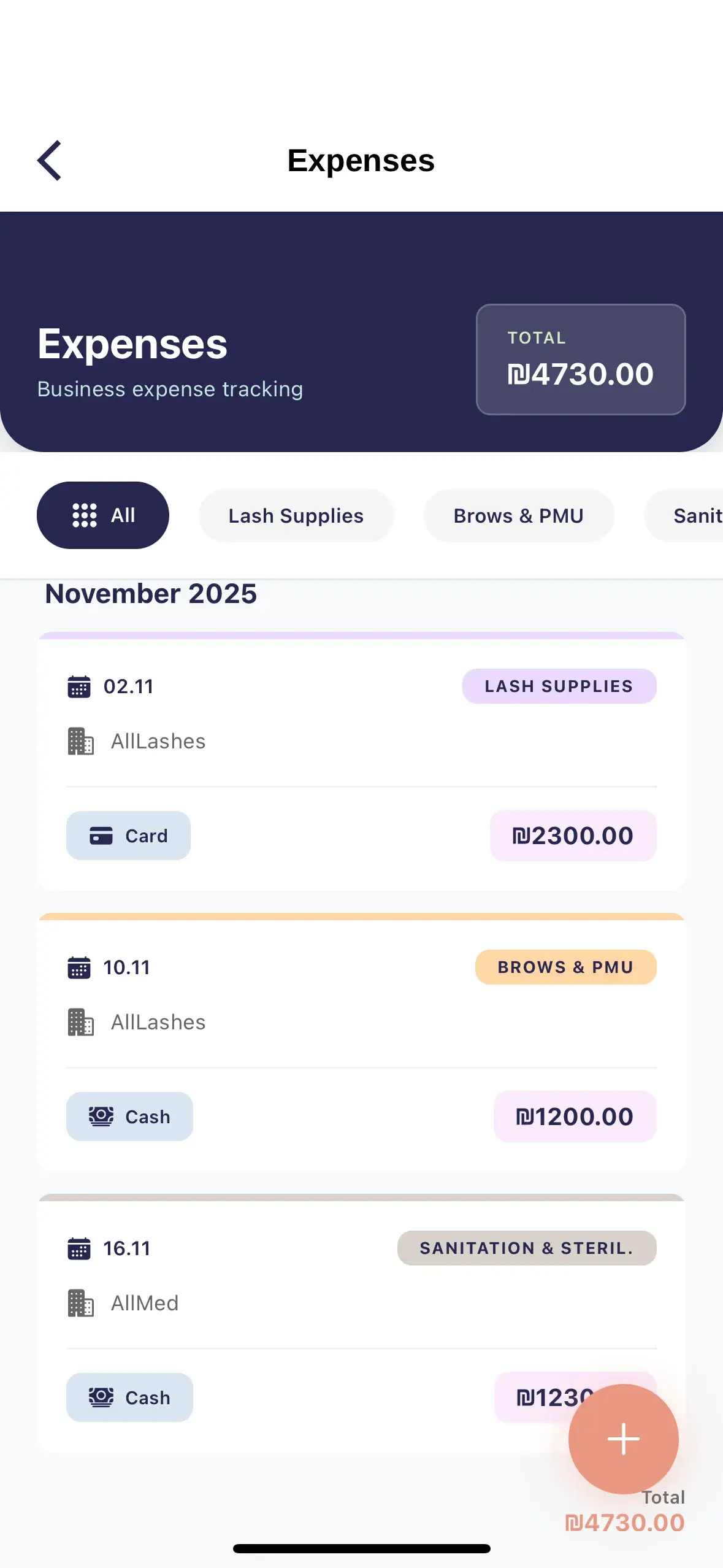
What an expense card shows
The main details of a saved transaction
Payment method
How the purchase or service was paid for
Date
When the expense occurred
Category
The cost group assigned to the transaction
Supplier
Who received the payment
Amount
The total expense amount
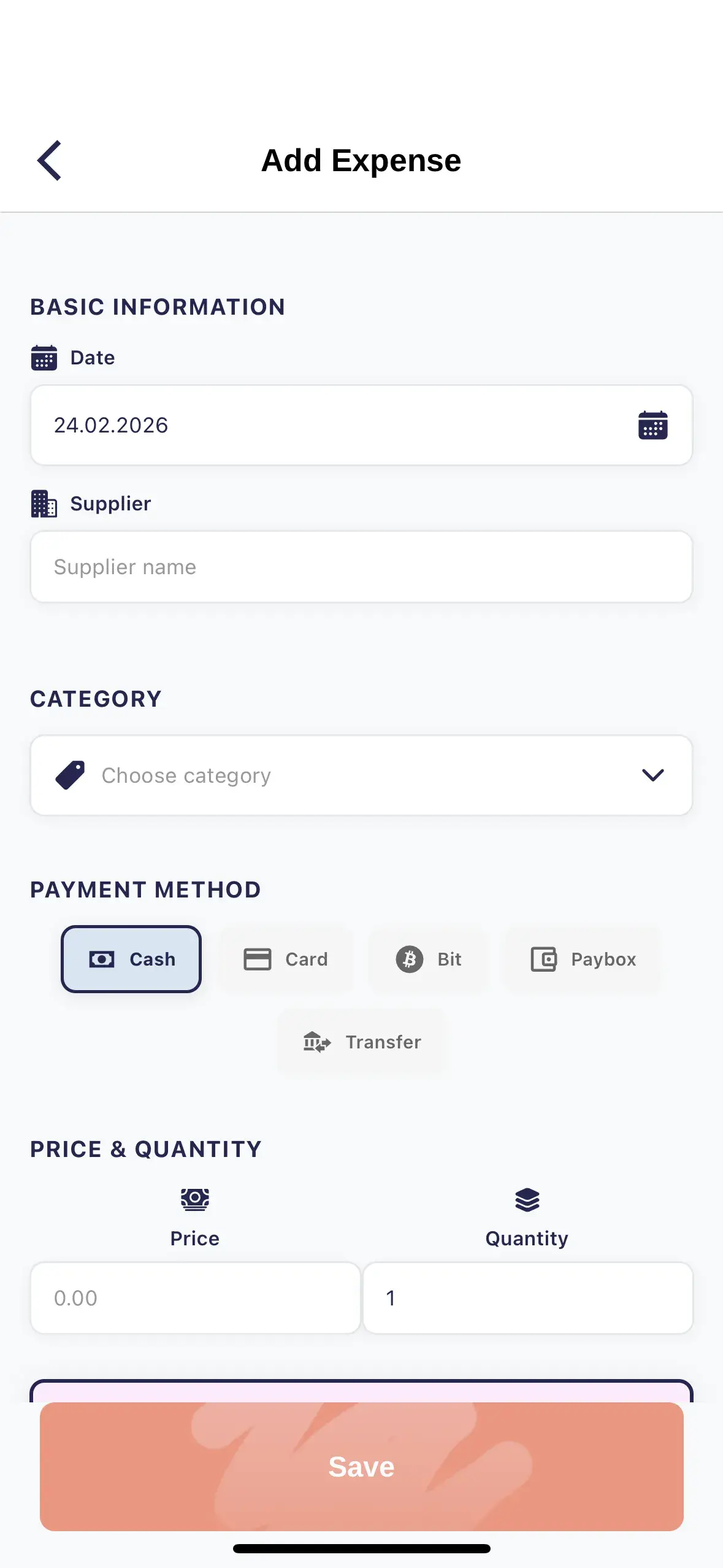
How to add an expense
Enter the details and save the transaction
Date
Set the expense date
Supplier
Add the supplier name when needed
Category
Select the appropriate cost category
Payment method
For example cash, card, Bit, PayBox, or bank transfer
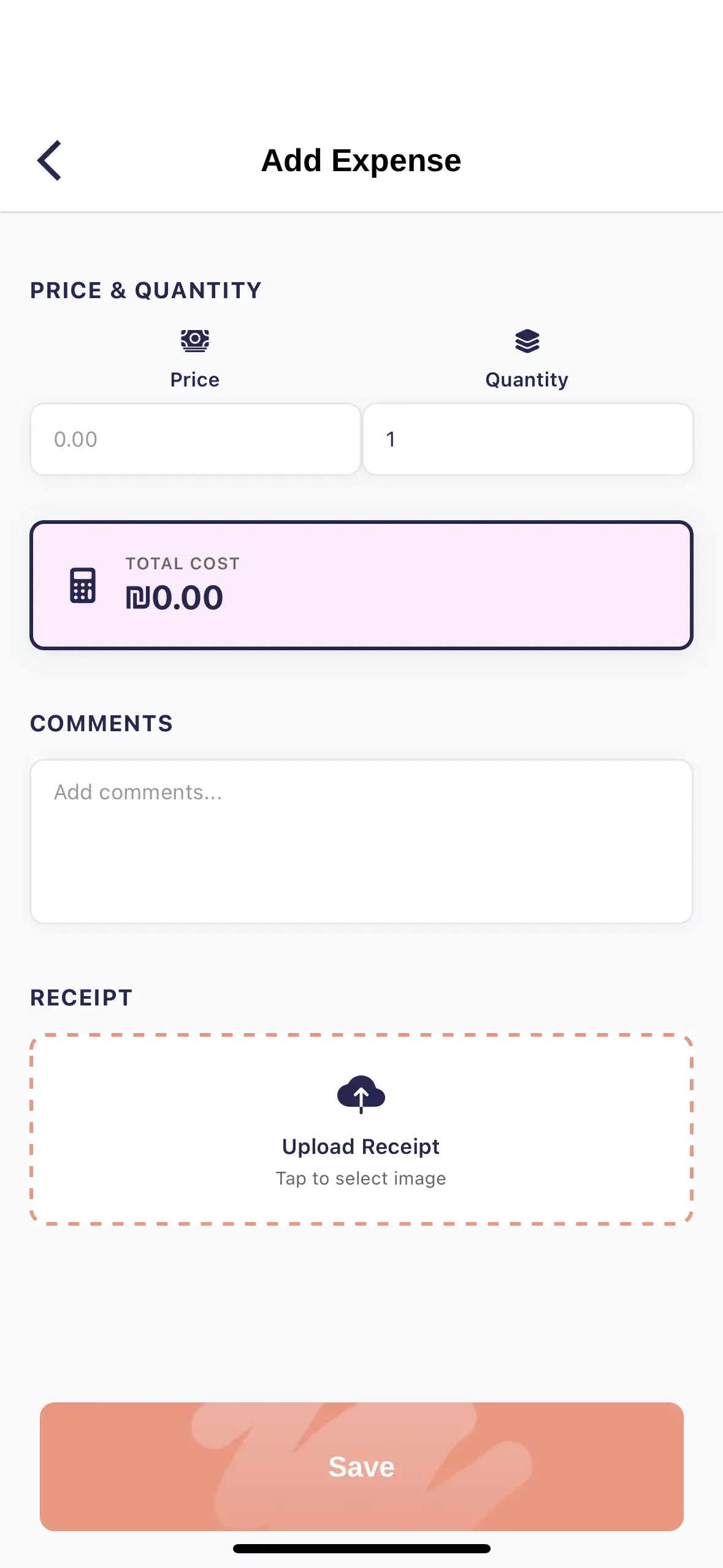
Price and quantity
Enter the price and quantity, then check the total
Comment
Add a note to make the transaction easier to find later
Receipt
Attach supporting documentation if this option is available
Helpful recommendations
Record it immediately
This keeps expenses from being missed and assigns them to the right day
Use categories
Consistent categories make costs easier to compare
Keep receipts
Supporting documents help verify transactions
Review the summary
Compare expenses with revenue and profit
Consistent tracking provides an accurate picture
Add expenses on the day of payment and use consistent categories. This makes the financial summary more useful for analysis and planning.