
Video Guide
📅 Schedule
Choosing Calendar View: Grid or List
Two schedule display formats for convenient work
Two Calendar Views
ZmanUp offers two schedule display formats, each suited for different work styles.
Available views:
Grid Calendar
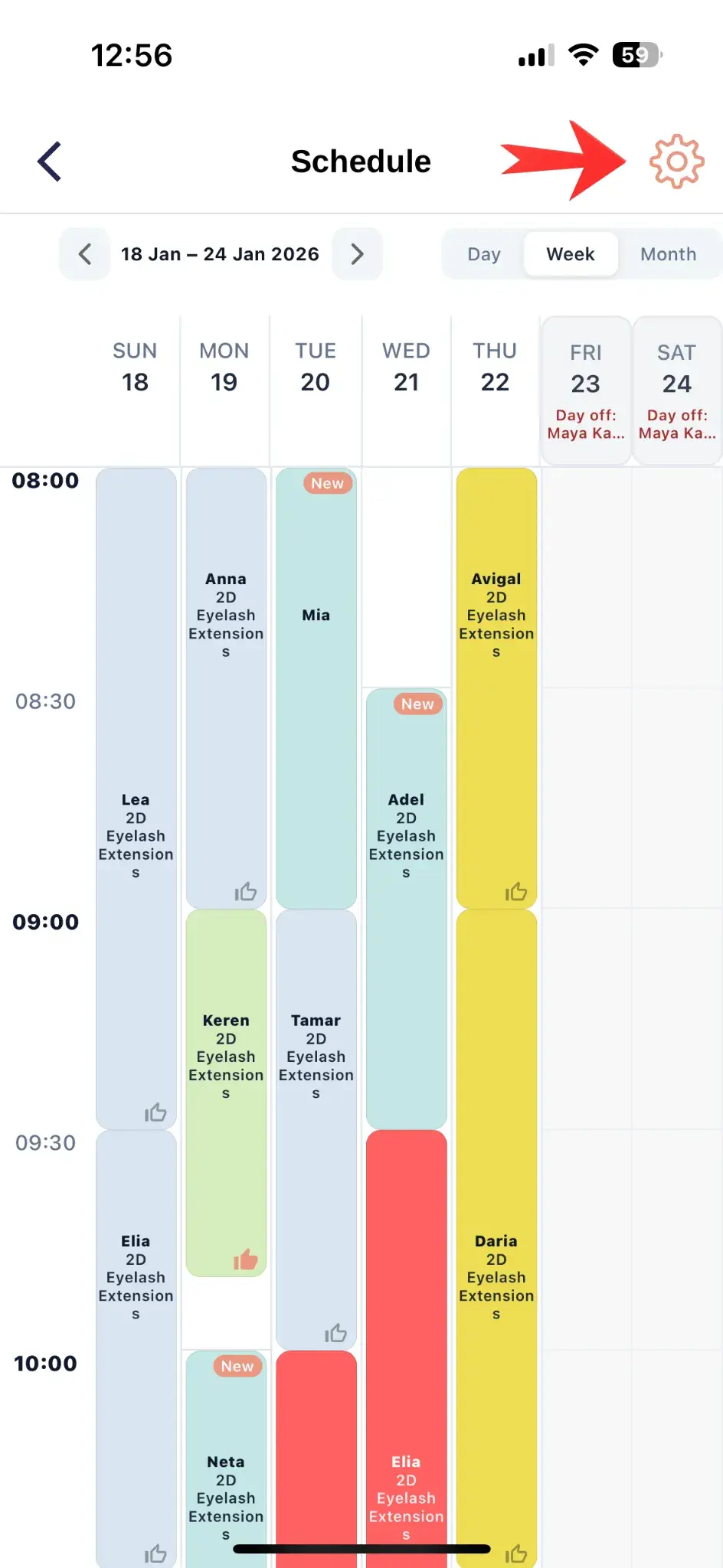
The Grid Calendar displays your schedule as visual blocks, where each appointment is represented by a colored rectangle. This allows you to see your entire workday at a glance.
List Calendar
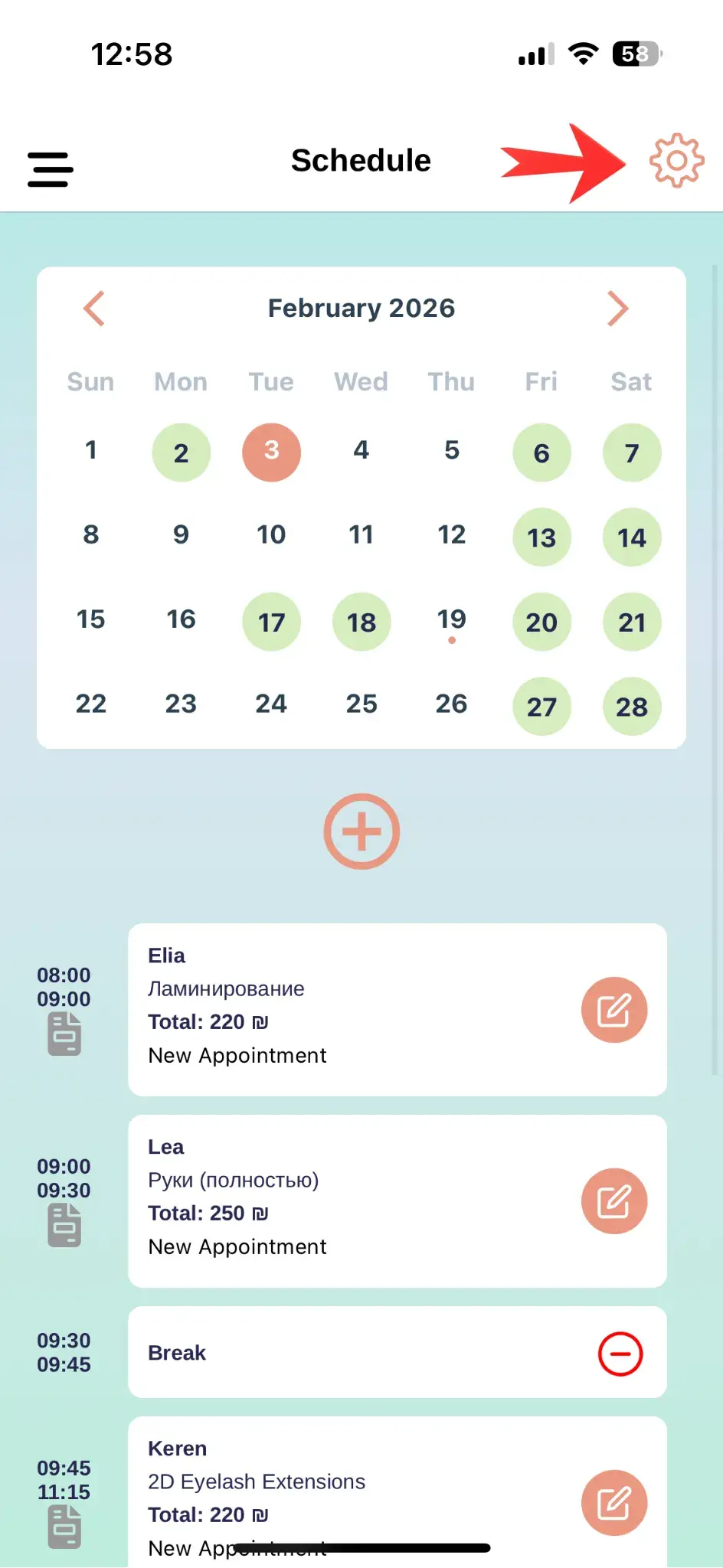
The List Calendar displays appointments as a classic list with dates. This is a more traditional format, similar to a planner.
💡 You can switch between views anytime in calendar settings.
Grid Calendar
What is it?
The Grid Calendar displays your schedule as visual blocks, where each appointment is represented by a colored rectangle. This allows you to see your entire workday at a glance.
How it looks:
- Time scale on the left (09:00, 09:30, 10:00...)
- Colored blocks with client names and services
- Multiple columns for different specialists (if applicable)
- Service duration shown by block height
- Free slots immediately visible between blocks
Advantages:
- Visual clarity — immediately see free and busy slots
- Color coding — different services shown in different colors
- Time blocks — easy to assess service duration and breaks
- Multiple specialists — each in their own column
- Workload — instantly see how full the day is
- Likes — mark favorite clients
- Badges — see new clients (like 'New' badge in image)
View modes:
- Day — detailed schedule for one day
- Week — overview of entire week with columns for each day
- Month — general month view with availability markers
Ideal for:
- Professionals with busy schedules
- Salons with multiple specialists
- Long procedures (extensions, coloring)
- Visual workload control
List Calendar
What is it?
The List Calendar displays appointments as a classic list with dates. This is a more traditional format, similar to a planner.
How it looks:
- Date selection at top (7, 8, 9, 10, 11... as in bottom image)
- List of appointments under dates
- Dots under dates show appointment presence
- Highlighted date (like 17 in image)
- Add new appointment button
Advantages:
- Simplicity — familiar list format
- Mobile-friendly — more convenient on small screens
- Details — more information about each appointment
- Focus — concentration on specific day
- Speed — less visual load
Ideal for:
- Individual specialists
- Mobile phone work
- Short procedures
- Simple schedules
How to Switch Calendar View
Steps:
- Open "Schedule" section
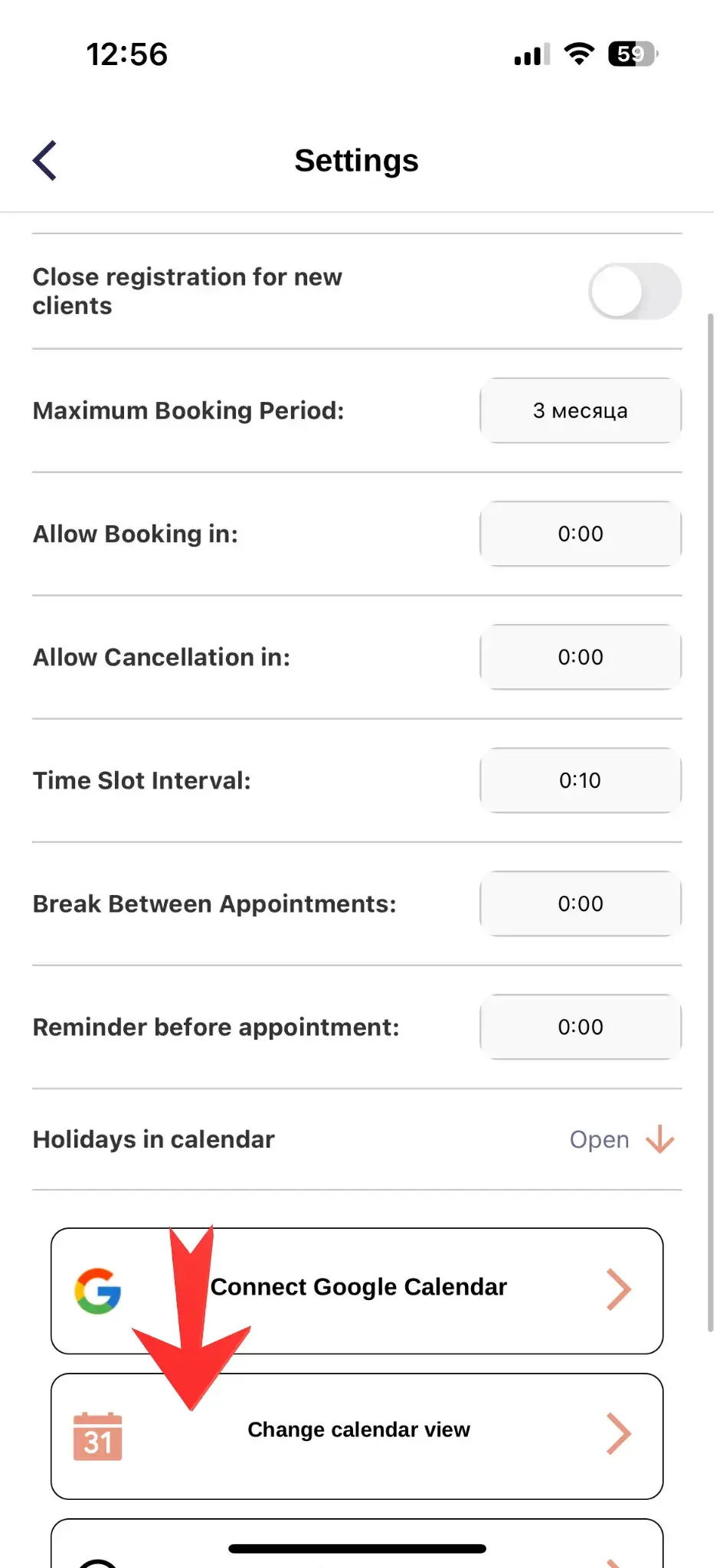
- Click settings icon (⚙️) in top right corner
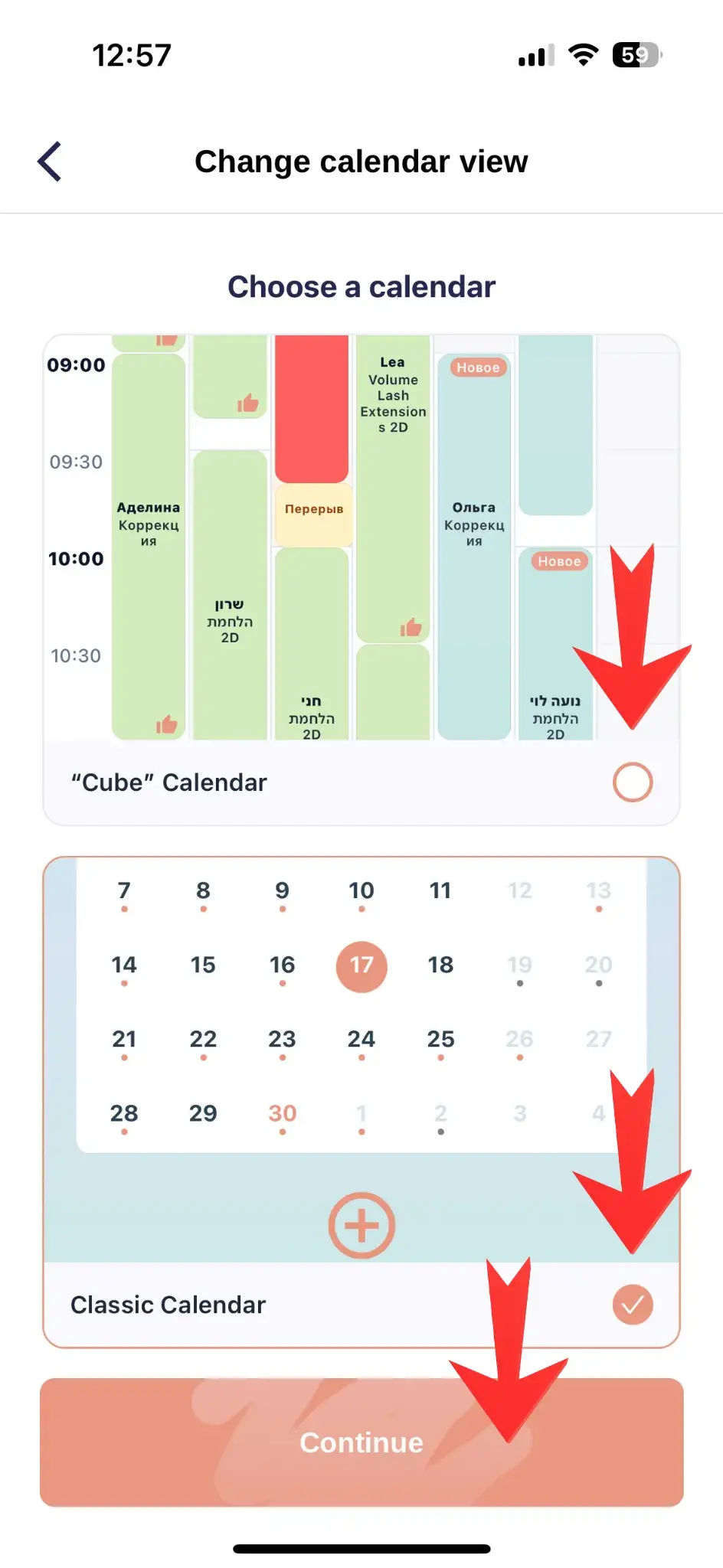
- Select "Change calendar view"
- Choose "Grid" or "List"
- Save changes
✅ Changes apply instantly — you'll see the new view immediately.
View Comparison
| Parameter | 🎨 Grid | 📋 List |
|---|---|---|
| Visualization | Excellent | Simple |
| For mobile | Medium | Excellent |
| Multiple specialists | Yes | No |
| Appointment details | Brief | Full |
| Week overview | Excellent | Medium |
Recommendations
🎨 Use Grid if:
- You have a busy schedule with many appointments
- Multiple specialists work
- Important to see day's workload
- Services of different durations
- Working from computer or tablet
📋 Use List if:
- Mostly working from phone
- You have a simple schedule
- You're a solo specialist
- Prefer lists to visual blocks
- Short procedures
💡 Tip: Try both options and choose what's more comfortable. Many specialists use Grid on computer and List on phone.