
Connect AllPay
Set up online payments for services, deposits and purchases through AllPay.
What is AllPay?
AllPay is an Israeli online payment service. Once connected, clients can pay for services, leave deposits and purchase products from your online shop.
Two connection methods
You can connect AllPay automatically through its integrations page or manually with an API Login and API Key.
Automatic connection
The fastest option: select ZmanUp in your AllPay dashboard and confirm the connection with your phone number.
Manual connection
Open the payment settings in ZmanUp and manually enter the API Login and API Key from your AllPay dashboard.
Automatic connection through AllPay
Start the connection in your AllPay dashboard and complete it in ZmanUp. You will not need to enter an API Login or API Key.
You must already have a ZmanUp account. During the connection, enter the phone number registered to your ZmanUp account.
Open the AllPay website and sign in to your dashboard.
Go to Settings and then select Integrations.
Find ZmanUp in the CRM section and select the integration card.
Select Connect. You will be redirected to the ZmanUp website.
Enter the phone number registered to your ZmanUp account.
Enter the OTP code you receive. ZmanUp and AllPay will then be connected automatically.
Method 2. Manual connection
Data from your AllPay dashboard
Use this option if you prefer to connect AllPay manually through the ZmanUp settings or if automatic connection is unavailable.
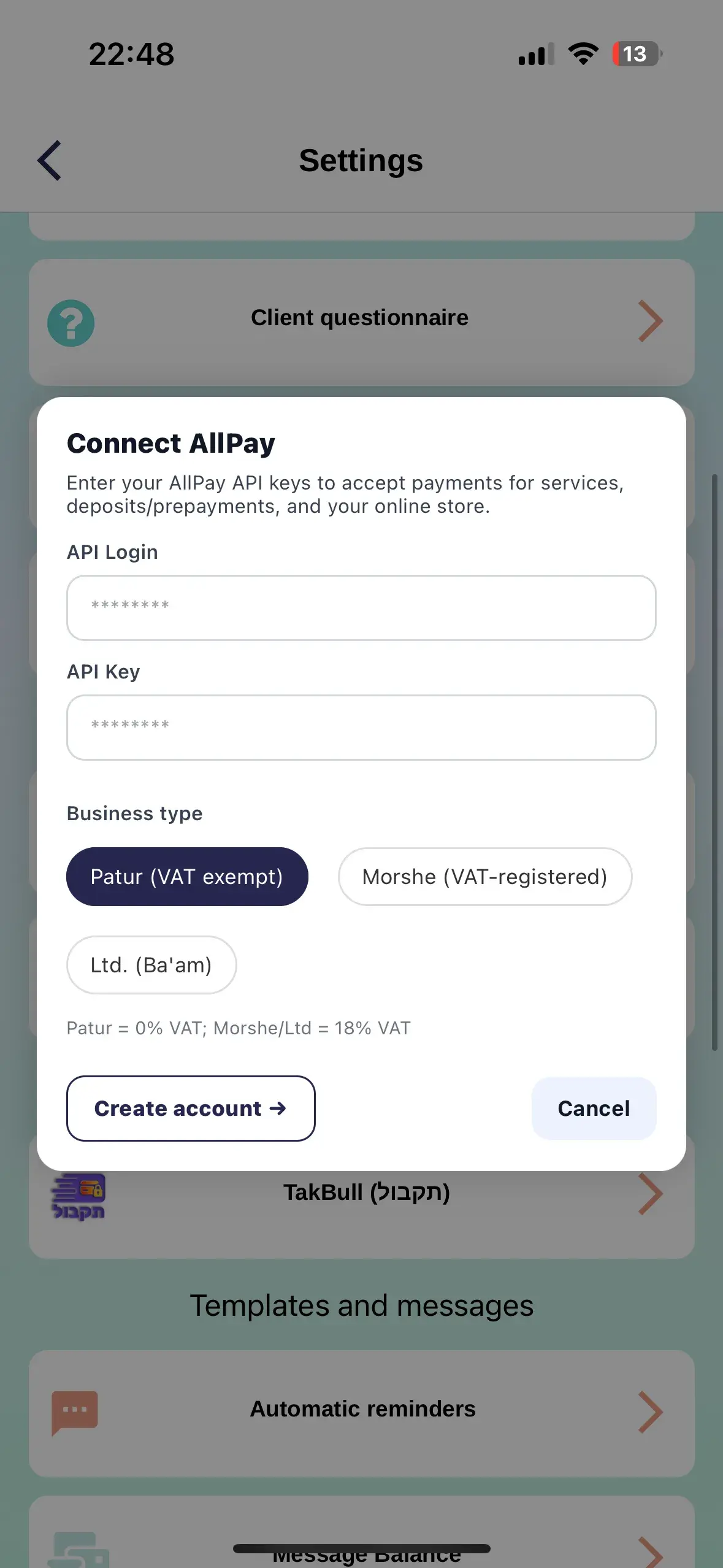
Business type
Select your business's legal status
Osek patur
A VAT-exempt business. VAT rate: 0%.
Osek murshe
A VAT-registered business. VAT rate: 18%.
Limited company
A limited liability company. VAT rate: 18%.
How to connect AllPay manually
Register with AllPay first, then return to ZmanUp:
- Open Settings → Payments → AllPay.
- Select Register.
- Complete registration and business verification on the AllPay website.
- Get your API Login and API Key from the dashboard.
- Return to ZmanUp and enter the details.
If you already have an API Login and API Key:
- Enter the API Login and API Key.
- Select your business type.
- Select Save.
Disconnect AllPay
Select the red Remove connection button at the bottom of the AllPay settings screen.
Clients will not be able to pay through AllPay until you reconnect the service.
Troubleshooting
❓ Payments do not work after connecting
💡 Check the API Login and API Key and make sure your AllPay account is active and verified.
❓ I cannot find the API Login and API Key
💡 Sign in to your AllPay dashboard and open the API or integrations settings.
❓ The Save button is disabled
💡 Make sure both the API Login and API Key fields are complete.
Tip
Keep your API Login and API Key secure and do not share them. Contact AllPay support if you need to recover the keys.