
Video guide
➕ Clients
How to add a client
Two simple ways to add a new client in ZmanUp
Adding a new client
You can add a client from your phone contacts or enter their details manually. Choose the convenient method, and the client will appear in your list after saving.
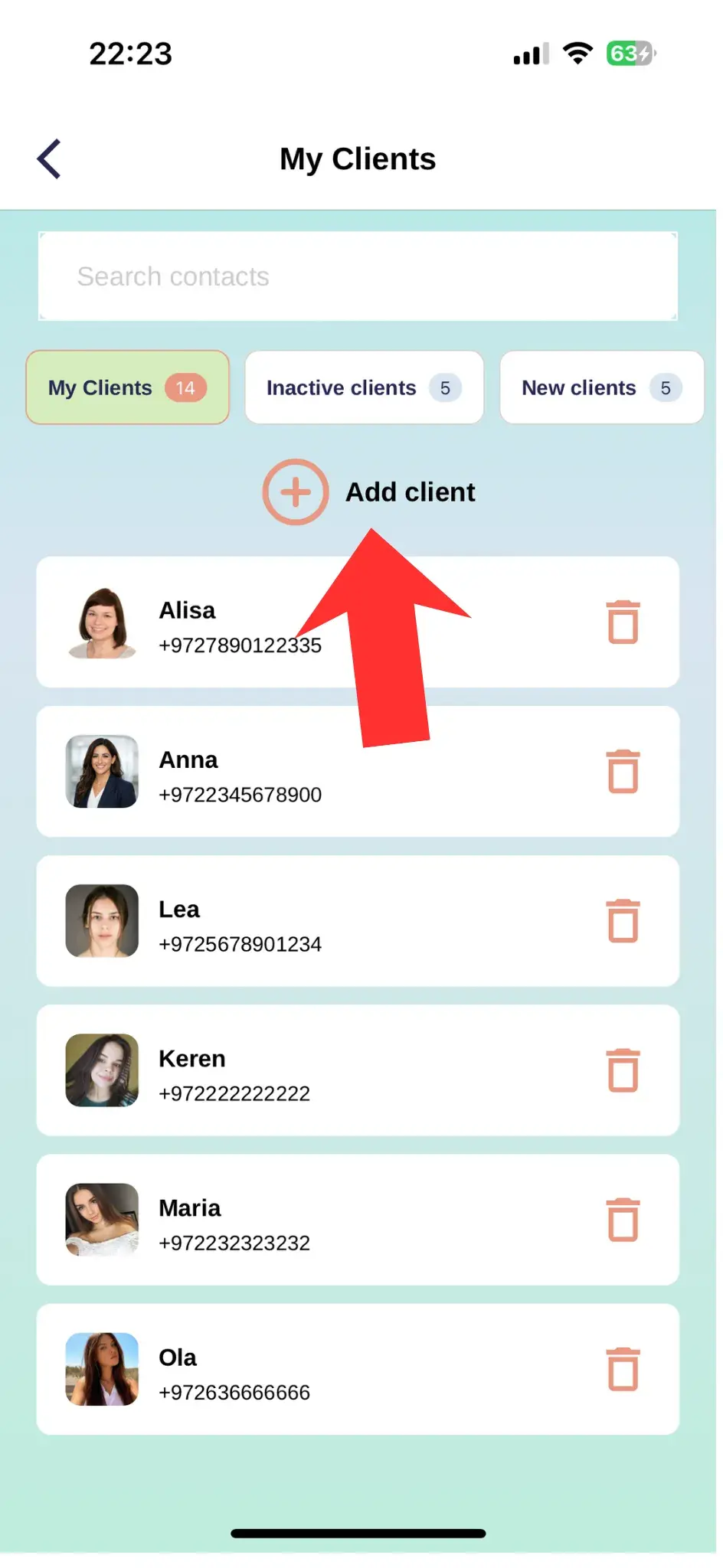
Where to find it: Clients → Add client button
From phone contacts
Quickly add an existing contact
Add manually
Create a client without a saved contact
From phone contacts
Quickly add an existing contact
Use this method when the client's phone number is already saved in your phone contacts.
How to add
- Open the Clients section
- Tap the Add client button
- Choose to add from phone contacts
- Find and select the relevant contact
- Check the details and save the client
Information that will be added
Add manually
Create a client without a saved contact
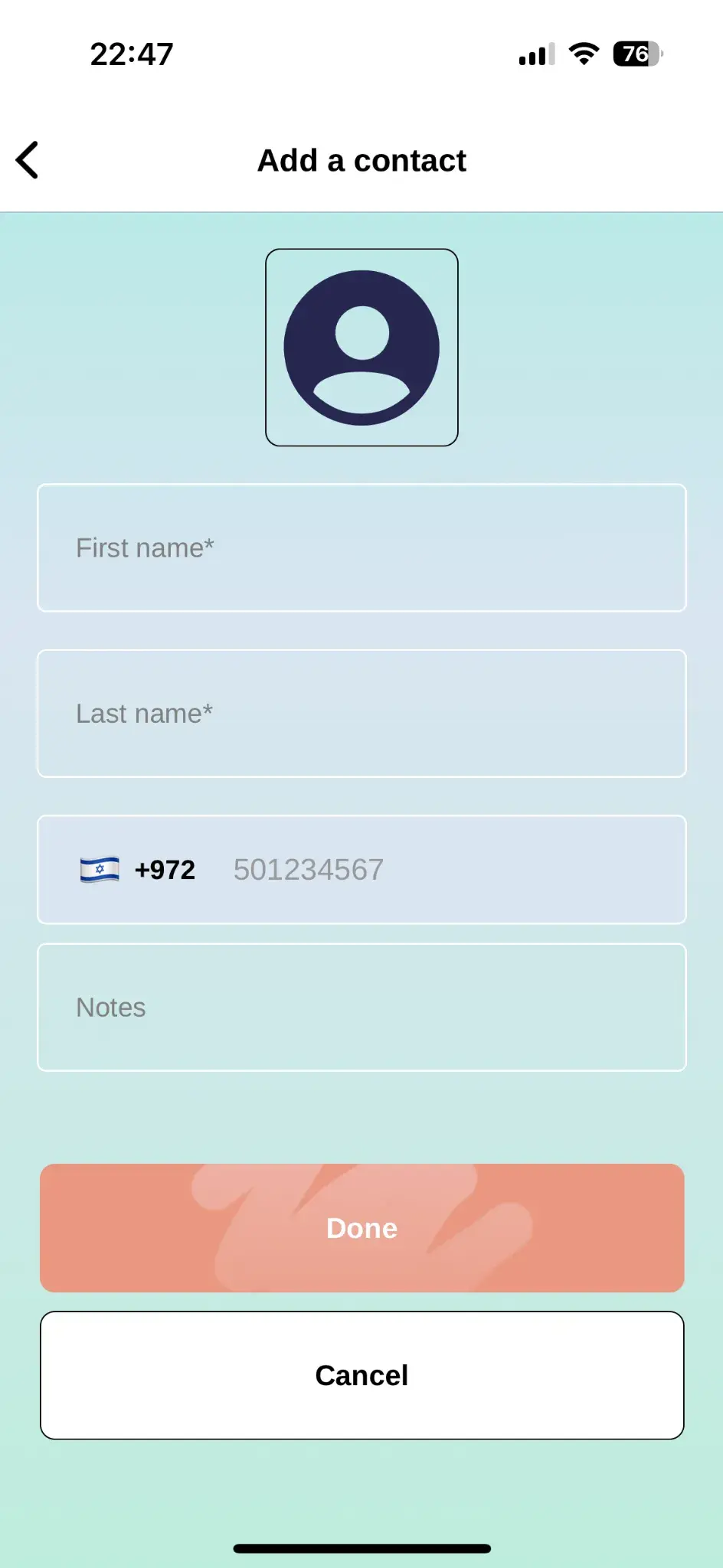
If the client is not in your phone contacts, enter their basic details manually.
How to add
- Open the Clients section
- Tap the Add client button
- Choose manual entry
- Enter the client's name and phone number
- Tap Save
After saving
The client will appear in your list, where you can open their profile and add more information.
Basic information
Additional information
Tip
Check the phone number before saving. It is used to contact the client, send messages, and find their profile.